Create Your First Wallet
This article walks through creating your first wallet step by step, including choosing a wallet type and setting up your backup key.
Go to the left side bar navigation and click Portfolio > + New Wallet
You’ll be asked to Name your wallet and then choose the Asset it will hold
Select which key custody option you want.
BitGo Custody: These are qualified custody wallets that offer the highest level of security and are managed by BitGo. (BitGo refers to one of BitGo’s globally licensed and regulated entities offering qualified custody. Refer here for more information)
Myself
Self-Custody (Hot): Keys are stored online. Offers the most flexibility for frequent, programmatic transactions, but is generally less secure than cold storage
Self-Custody (Cold): Keys are stored offline. Offers the most control and privacy, but requires manual steps (like using an Offline Vault Console, or OVC) and is less flexible
If you choose Custody:
Click Continue. Depending on the asset type, you will be prompted to choose between two signature protocols:
Multi-Signature (Multi-Sig): A smart contract that requires multiple distinct signatures (keys) to validate a transaction. Multi-Sig is widely supported across blockchains. Depending on the coin or token, you may be asked to fund a gas tank to create the initial wallet. To learn more about gas tanks, click here.
Multi-Party Computation (MPC): Instead of full keys, three key shares are combined through a cryptographic process called Threshold Signature Schemes (TSS) to produce a single valid signature. No gas tank is required for managing signers. Because the keys are never fully reconstructed during signing, MPC offers enhanced privacy and security.
Note: Both signature schemes offer the same level of security with the 2-of-3 co-signing model. The choice often depends on the specific blockchain asset. You can learn more about supported coins and tokens here
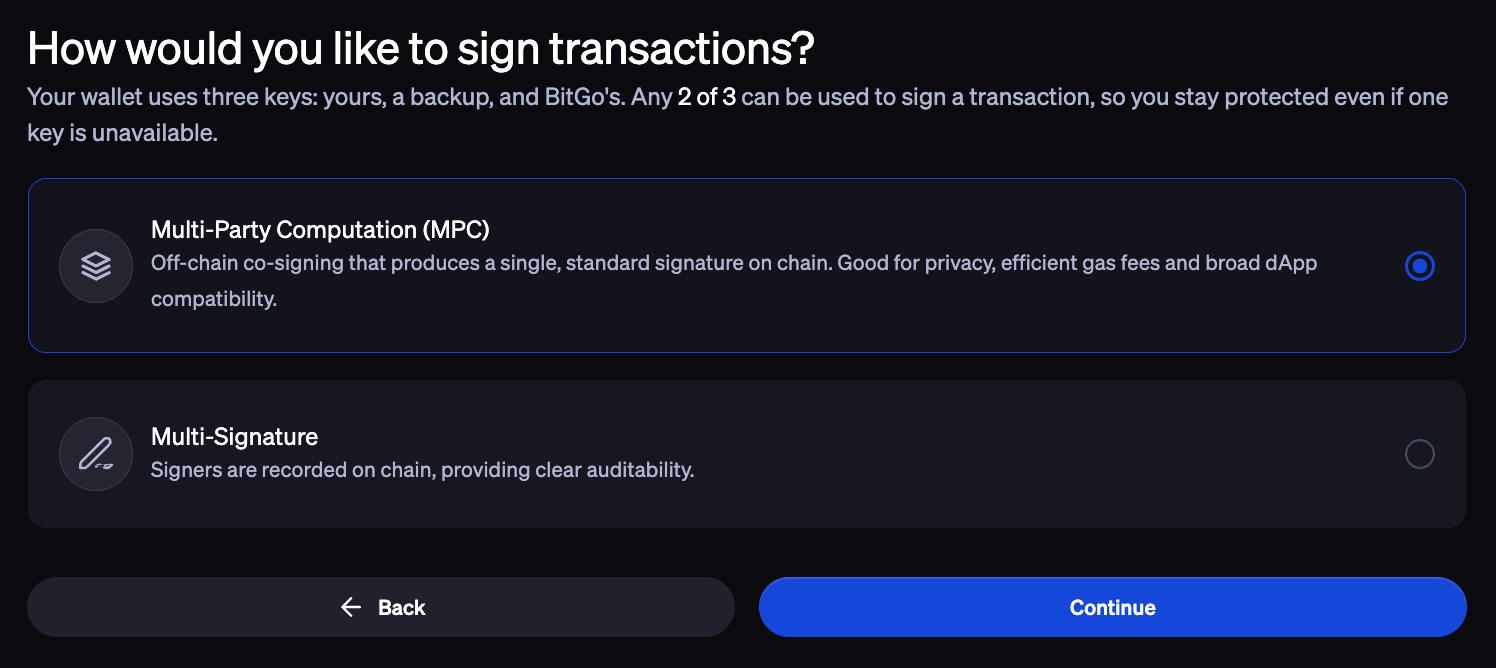
Then, click Create Wallet and your qualified custody wallet will be created
Creating a Self-Custody Hot Wallet:
Go to the Portfolio homepage and click + Create Wallet
You’ll be asked to Name your wallet and then choose the Asset it will hold
Under Key Custody options, select Myself. Click Continue.
Select a Wallet Type from the following options:
Self-Custody Hot: An internet-connected wallet ideal for frequent transactions and quick access. Best suited for smaller amounts. Security relies on strong passwords and two-factor authentication.
Self-Custody Cold: An offline wallet ideal for long-term storage of large amounts. Transactions are made using the Offline Vault Console (OVC) on a secure, internet-disconnected device.
For this example, select Self-Custody Hot.
Depending on the coin you are looking to host in the wallet, you will have the option between either a Multi-signature or Multi-party Computation Signature Protocol
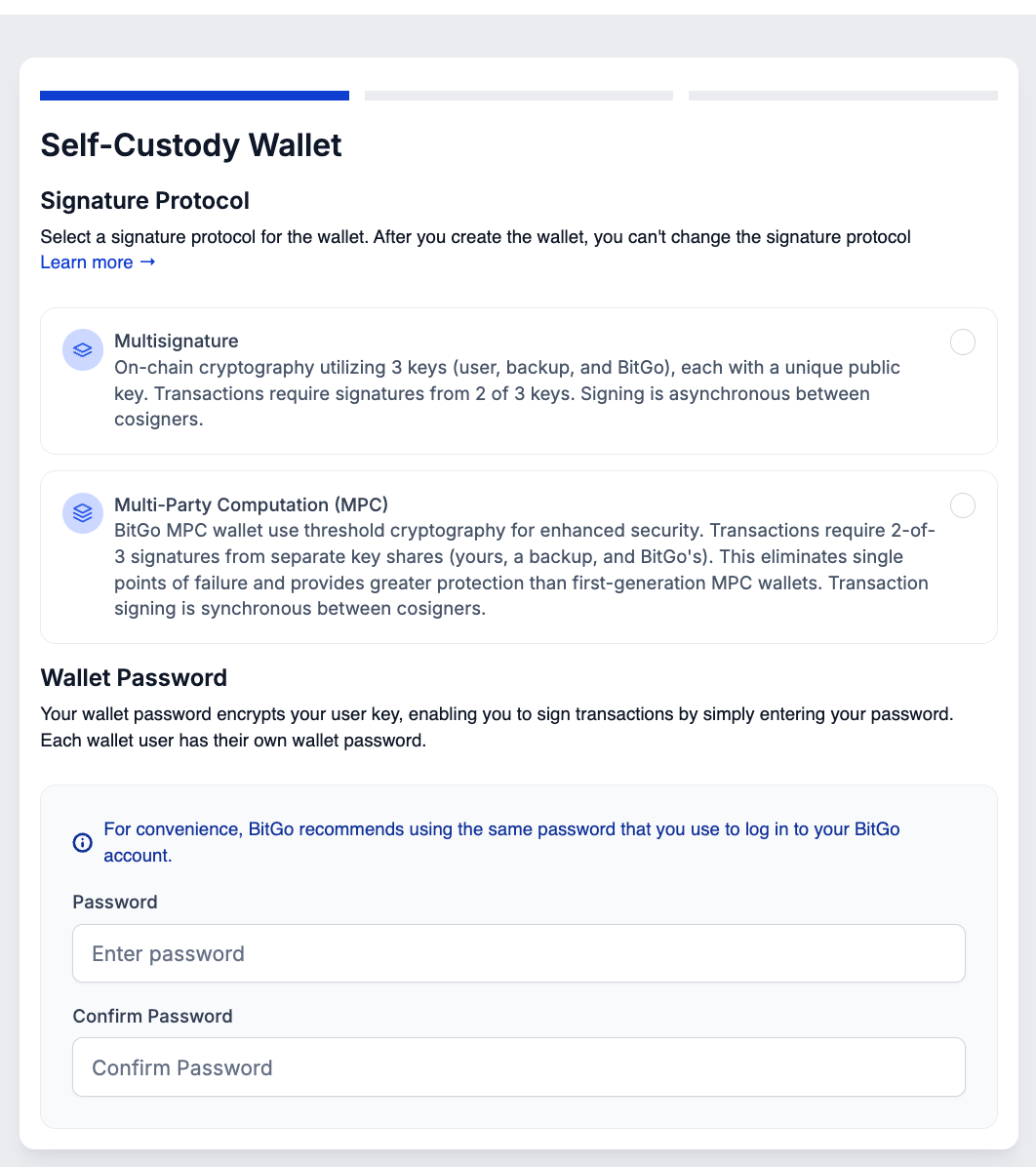
If you choose multi-signature, depending on your coin/token, you may be asked to fund your gas tank. Create a password and click Continue
You will need to select how you want to manage the Backup Key for this wallet. In the case of a disaster, the backup key enables you to sign transactions in place of the user key. You have three options to manage this key:
Use a Trusted Partner: BitGo partners with Coincover, a key recovery service, to create and store your backup key for a set fee
Bring Your Own Key: Create your own key and upload it to BitGo. This can be done using BitGo’s Offline Vault Console
Create a Key in BitGo: Create a backup key in your browser and save it in a secure location
If you choose MPC, you will need to create a password. BitGo does not recommend using the same password as your Login. Click Continue
You will need to select how you want to manage the Backup Key for this wallet. For this example, select Create a Key in BitGo and then click Generate KeyCard. Note: this will be the same process for multi-signature wallets
On your desktop, you should have received a downloaded pdf for your Back Up KeyCard. This file will contain the Activation Code to Activate Wallet. BitGo recommends that you secure your KeyCard by printing the file and securing it in a safe location offline, then delete the downloaded file from your computer.
⚠️Note: For your security, BitGo will not provide this information again.
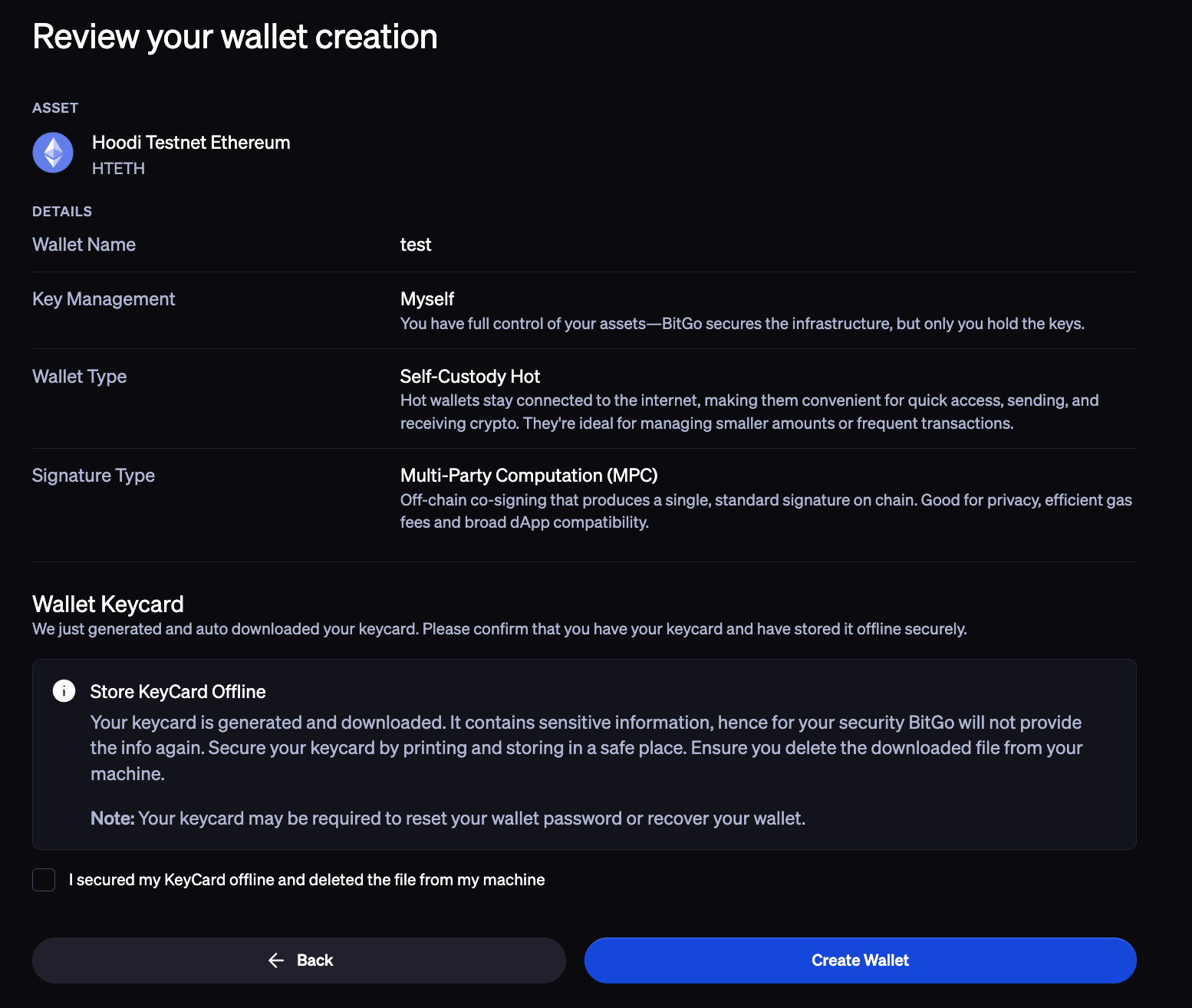
Click Create Wallet and your Self-Custody Hot Wallet is now created
Was this article helpful?
That’s Great!
Thank you for your feedback
Sorry! We couldn't be helpful
Thank you for your feedback
Feedback sent
We appreciate your effort and will try to fix the article