Editing Locked Policies / Unlocking Policies
This article explains how to unlock a locked policy so you can make changes.
Once a policy is locked, it must be unlocked before changes can be made. This can be done in two ways:
Method A
A user can email support@bitgo.com referencing the specific policy ID/s they wish to unlock and schedule a video ID call to verify the request. Once verification is complete, the support team will unlock the policy for the requested number of hours. This will allow a user with the appropriate permissions to make the needed changes or archive the policy.
Method B
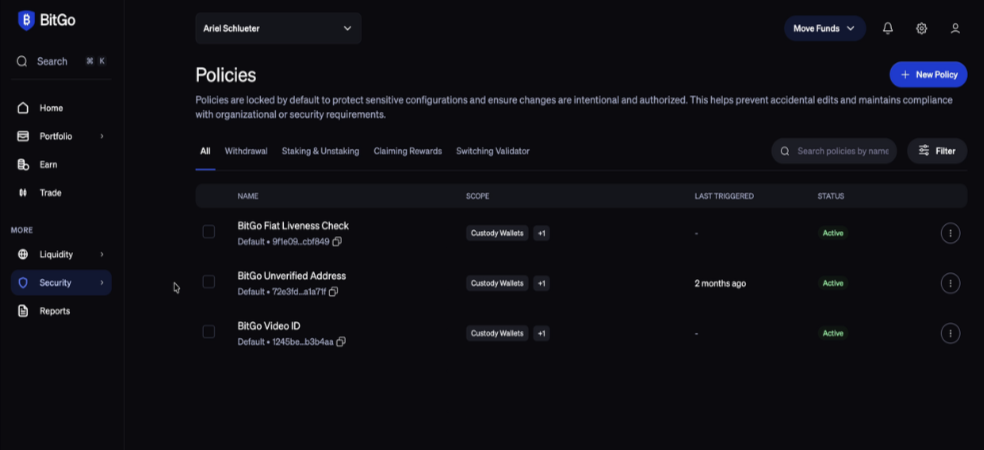
Step 1: Go to Security → Policies
Navigate to Security → Policies in the BitGo sidebar. All policies are locked by default to prevent unauthorized changes.
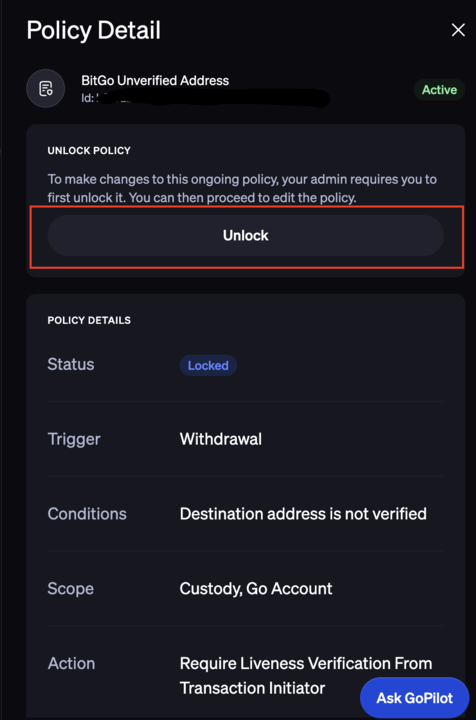
Step 2: Open the policy you want to change
Click into the specific policy (here, "BitGo Video ID") to open its Policy Detail panel. Note the Unlock button under "Unlock Policy."
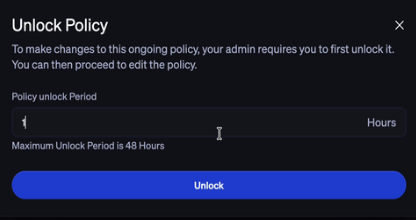
Step 3: Set the unlock period
Click Unlock. In the modal, set the Policy Unlock Period in hours.
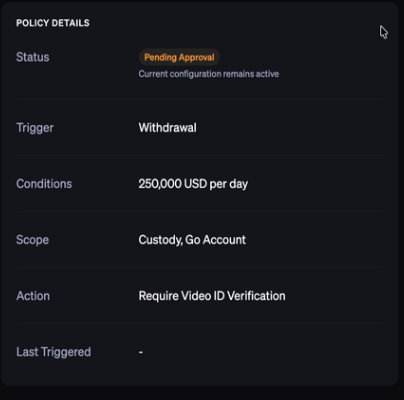
Step 4: Confirm its pending approval
You'll see a confirmation toast — the policy status changes to Pending Approval.
Step 5: Check Tasks → Other Tasks
Go to Tasks → Other Tasks to find the pending unlock request and view its details.
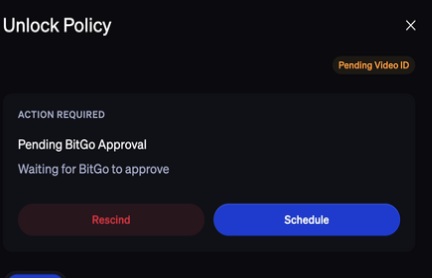
Step 6: Schedule the Video ID call
Since this policy requires video verification, click Schedule to open the Calendly-based scheduler. Choose an available slot for the 15-minute video ID call. Bring a government-issued photo ID
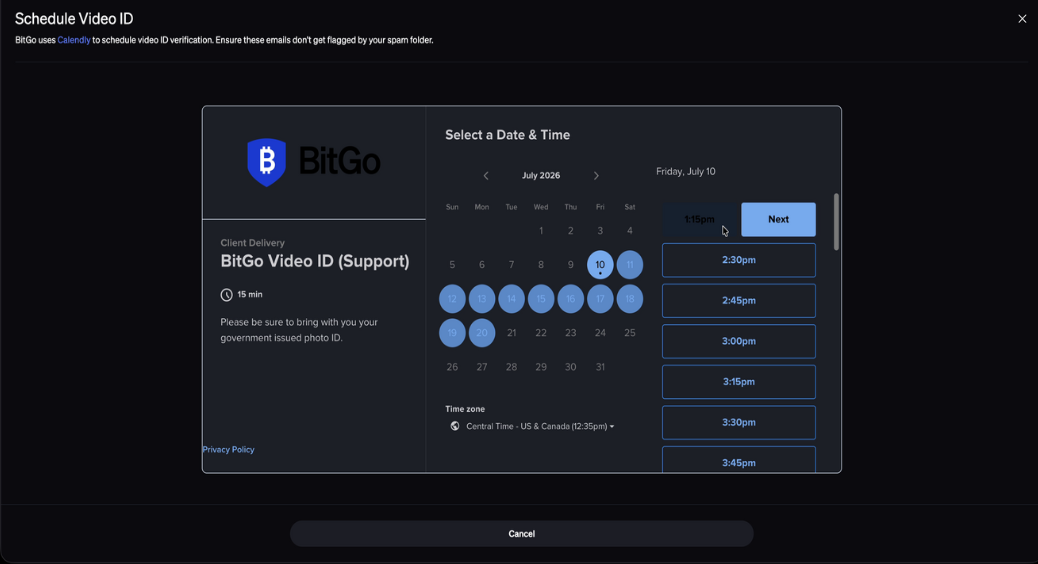
Step 7: (Optional) Rescind the request
If you change your mind before the call, you can return to the task and click Request to Rescind with a reason instead.
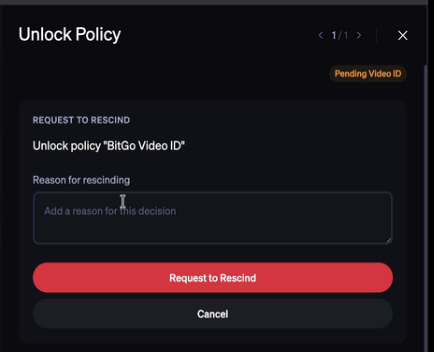
Note: This lock/unlock + video verification flow is intentional friction to prevent unauthorized changes to high-value withdrawal policies.
Was this article helpful?
That’s Great!
Thank you for your feedback
Sorry! We couldn't be helpful
Thank you for your feedback
Feedback sent
We appreciate your effort and will try to fix the article