Understanding Your Go Account
This article covers how to activate your Go Account, add or link a bank account, and deposit fiat or crypto funds.
A Go Account is a multi-asset, qualified custody account on BitGo’s platform that lets you securely manage, trade, borrow, lend, and settle both fiat and digital assets, all without moving them out of the security of custody. To learn more about what a Go Account is, read more here.
Activation depends on your custody account type:
BitGo Bank & Trust users are automatically enrolled — just fund your account to get started.
Self-custody wallet users can enroll via Trade > Unlock Trading or Liquidity > Go Network > Unlock Go Network in the left sidebar navigation.
Complete the remaining sign-up steps as prompted, including identity verification, to finish activating your Go Account.
How to Connect a Bank Account
To transfer fiat in and out of your Go Account you will need to add a bank account. You can do this in two ways:
Via Settings — Click Settings in the top-right corner, then navigate to Manage Enterprise > Bank Transfer Methods in the left sidebar.
Via Search — Use the Search bar at the top of the dashboard and type bank. Under Workflows, select Add Withdrawal Bank Transfer Method Account.
You have three options for linking your bank account:
How to Deposit Funds
With Crypto
In the Home page screen, select Deposit.
After clicking Deposit the next screen will ask you to Select Asset. Select your asset and then you will be directed to Select Wallet. Once you do, a QR code with your address should be generated.
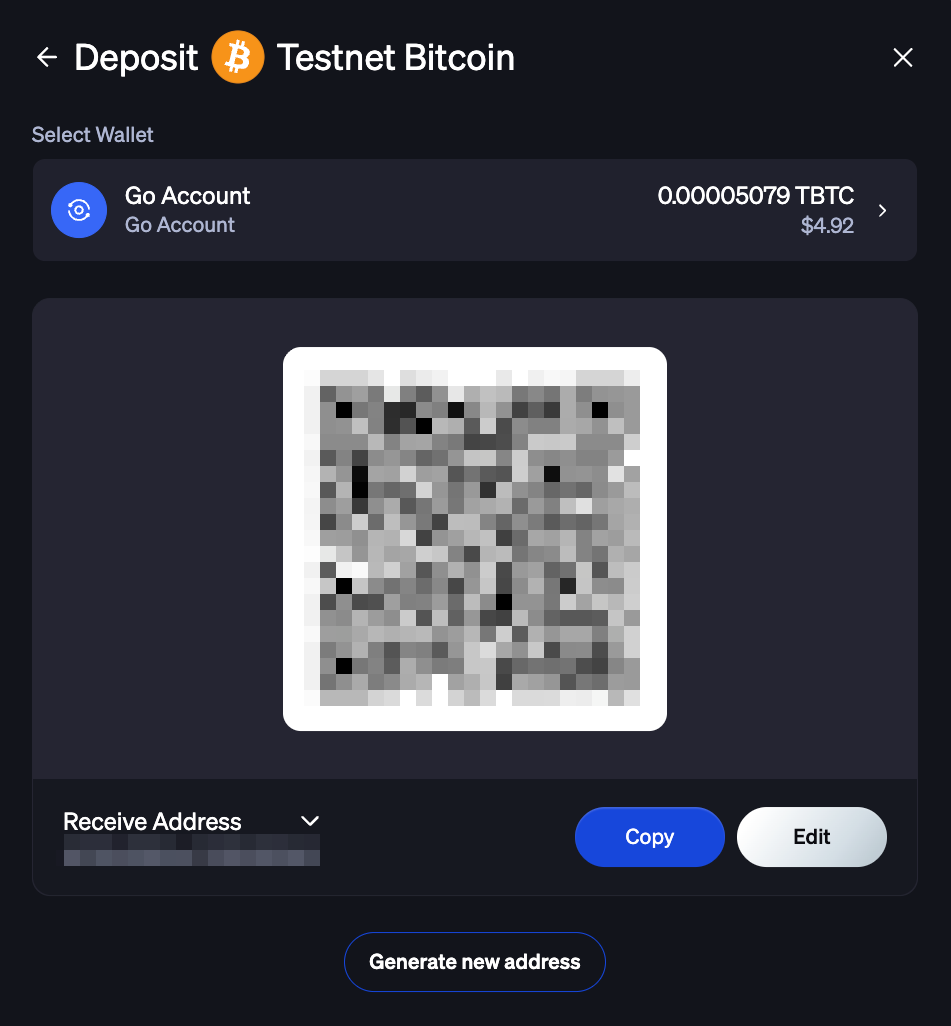
The platform uses the destination address to ensure that the client is credited with the deposit. Use the displayed address as the address to move assets from an external wallet into your Go Account.
With Fiat
Fiat deposits are made in the same way as digital asset deposits. Navigate to the Home screen, Select Deposit > Select Asset. Once your fiat has been selected, select where you want to Deposit from. You will have the option to choose from a BitGo Banking Partner from the options provided in platform or Cubix if you are an enterprise. To complete the deposit, follow the on-screen instructions.
MemoID
At your bank, create a wire transfer to send funds to the correct BitGo account. When completing the wire transfer, make sure to enter your BitGo MemoID in the Memo or Additional Information field — include only the Memo ID and nothing else.
Your BitGo Memo ID can be found at the bottom of the on-screen instructions in the BitGo Platform — click Copy to copy it. BitGo generates a unique Memo ID for each client to ensure deposits are credited to the correct trading account.
If you are unable to include a Memo ID, contact our team after your wire transfer at support@bitgo.com.
Was this article helpful?
That’s Great!
Thank you for your feedback
Sorry! We couldn't be helpful
Thank you for your feedback
Feedback sent
We appreciate your effort and will try to fix the article