Borrowing from BitGo
BitGo enables you to access liquidity by borrowing against digital assets held in your BitGo accounts. Instead of selling assets you can use them as collateral to unlock capital for trading, operations, or other use cases.
Borrowing is available against individual assets or your Go Account assets with flexible collateral options and customizable loan terms.
Assets available for borrowing
You can submit requests to borrow USD, USDC, USDT and BTC through the platform. If you would like to inquire about assets that are not listed, please contact bitgoprime@bitgo.com for more information.
Collateralization requirements and haircuts
Collateral requirements will vary by collateral type. BitGo may support additional assets as collateral outside of those listed. Please contact bitgoprime@bitgo.com for more information.
A haircut is a percentage reduction applied to the value of an asset when it’s used as collateral. It helps determine how much you can borrow against that asset. The higher the haircut, the less borrowing power the asset provides.
Haircuts help manage risk by accounting for factors like price volatility and liquidity.
Below are the current indicative haircuts for supported assets (as of April 2026):
Good to know:
Haircuts are subject to change
Final terms are confirmed when your loan is structured
Applying for a loan to borrow assets
Navigate to app.bitgo.com > More > Liquidity > Borrow (a new webpage will open)
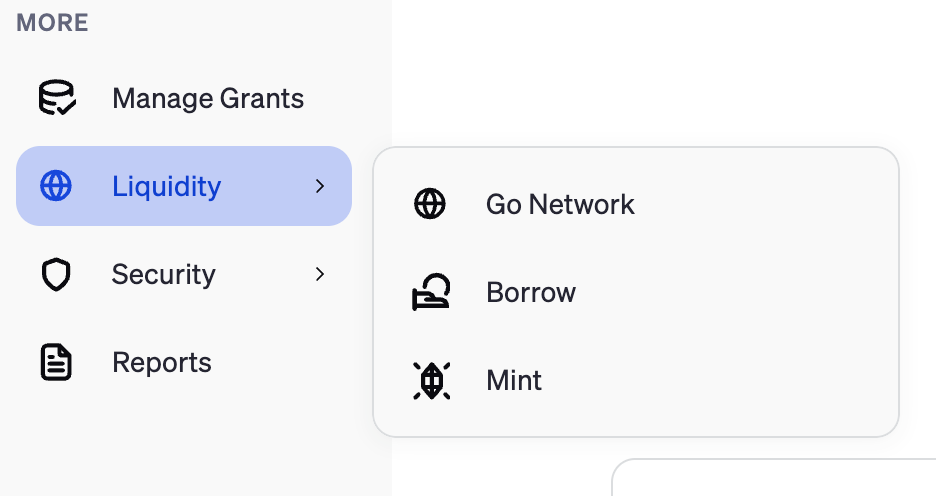
Click Request Borrow
Enter the loan details
Collateral type
Standard: single asset as collateral
Go Account: portfolio of assets as collateral
Amount to borrow
Borrow asset
Collateral asset: only needed if Standard is selected in Collateral Type
Loan Type
Submit your application
Note: if you select Standard as the collateral type, you will need to pledge collateral. Collateral must be in your Go Account and will be transferred to BitGo Prime via Go Network Delivery vs Payment (DvP). This means they will be completed in real-time and occur offchain.
Refer to Managing your Transactions > Transferring Assets for more information
Viewing loan details
In the Borrowed Assets section of the Financing tab, click on Details in the row of the open loan you wish to view the details of. This will take you to the Loan Dashboard where you can view:
The status of a loan (e.g., application, agreement, collateral, disbursement, active and closed statuses)
Invoices
Recent transactions
Collateral
Documents
You will also be able to:
Cancel a loan or payment if it is in progress
Make a payment
Close your loan, if applicable
Top up collateral
Monitoring and topping up loan collateral
Margin call levels are specified in the Loan Term Sheet and are specific to each loan. If the loan value increases, BitGo Prime will notify you via email that additional collateral is required to bring the collateral up to the margin requirement level. Within the email there will be a button/link to deliver collateral. This email will be sent to Admins on your Go Account.
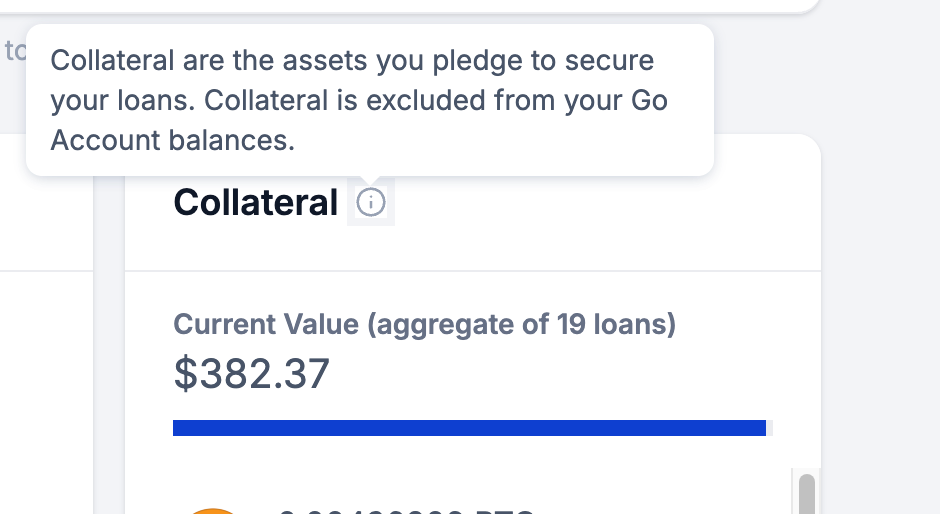
You can view the collateral that is currently being pledged for open loans in the Collateral section of the Financing tab. You can also go to a specific loan’s Loan Dashboard to view the collateral being pledged for that loan.
To top up collateral, go to the specific loan’s Loan Dashboard, click Top Up Collateral in the Collateral section. Here you will be able to transfer assets from your Go Account to meet collateral requirements.
Paying loan invoices
In the Borrowed Assets section of the Financing tab, click Pay Invoices to see invoices for all open loans or click on Details in the row of the open loan you wish to pay.
Requesting excess collateral be returned
You can contact BitGo Prime to request excess collateral above the margin refund level specified on the Loan Term Sheet be sent back. BitGo Prime will have 24 hours on a business day or until 7am ET on the next business day if requested on a holiday or weekend to send the requested assets.
Was this article helpful?
That’s Great!
Thank you for your feedback
Sorry! We couldn't be helpful
Thank you for your feedback
Feedback sent
We appreciate your effort and will try to fix the article