Link Your External Exchange Accounts
This guide covers how to create API keys on each exchange to Link your account to BitGo.
Supported Exchanges
Binance
1. Create the main account API key on Binance
Before you start
Make sure you're on your main Binance account.
You'll create the API key in Binance’s API Management page, then enter the credentials into BitGo.
In API Management, click Create API and select System generated. Then click Edit restrictions to configure the key as follows:
Bind IP access restrictions — select “restrict access to trusted IPs only” allowlist these addresses:
18.156.154.77 52.59.4.20 18.181.121.216 3.114.177.123
Permissions: Set the appropriate permissions for your use case:
Enable Reading
Enable Withdrawals
Enable Internal Transfer
Enable Alpha Withdrawals
Permits Universal Transfer
Before saving, be sure to copy your API Key and Secret Key in a secure location. Once you have done that, click save
2. Link your main account on BitGo
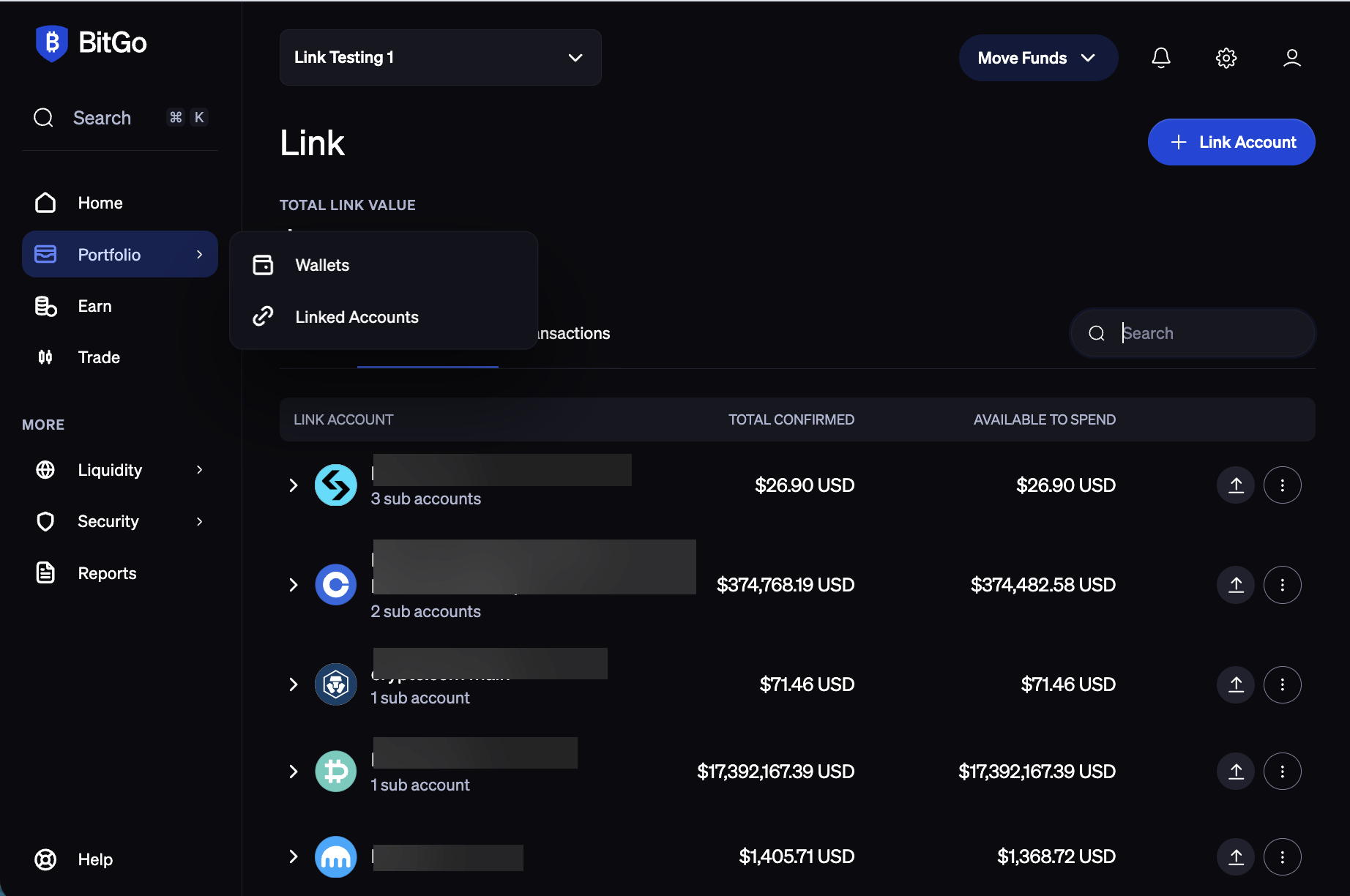
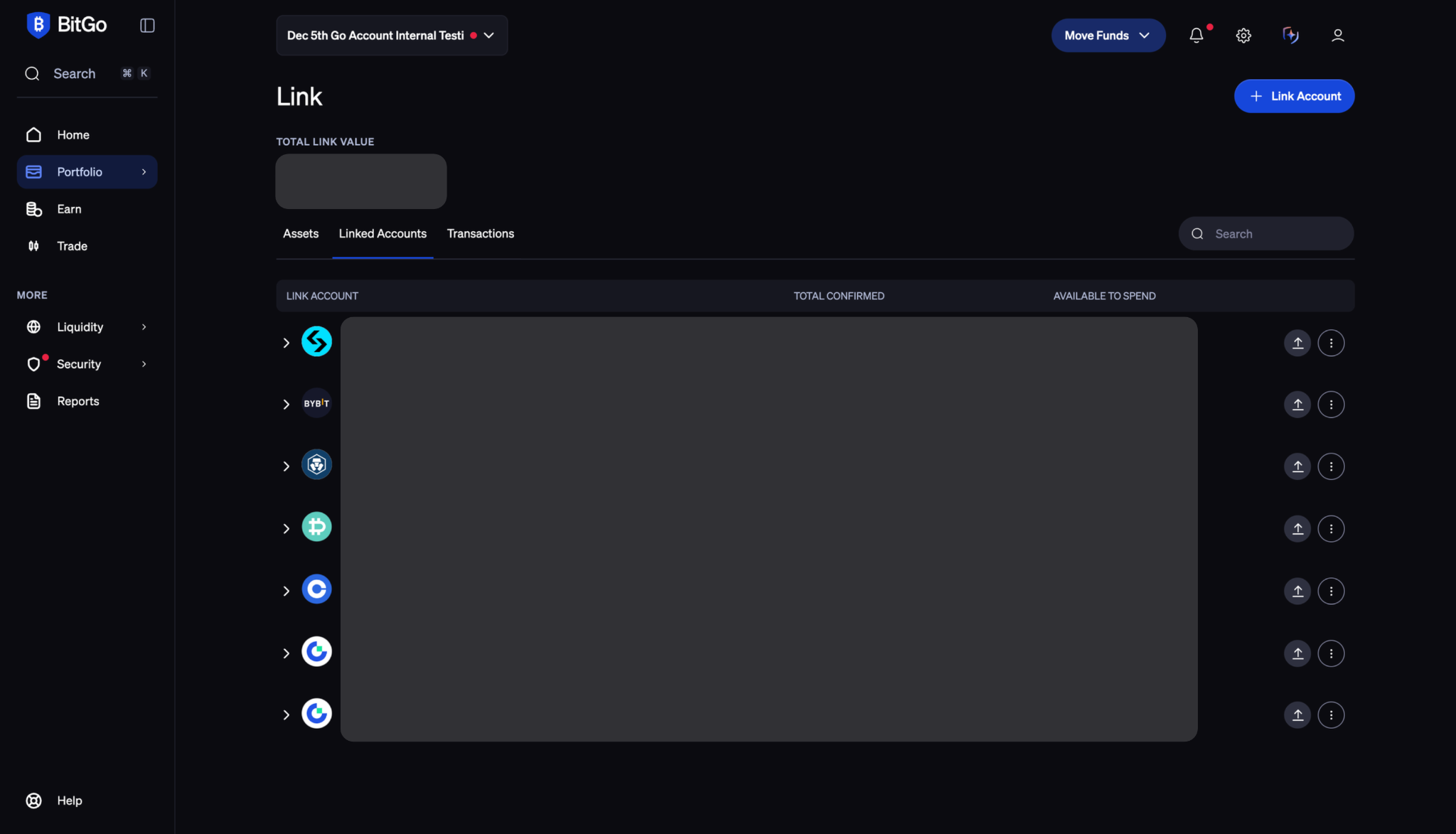
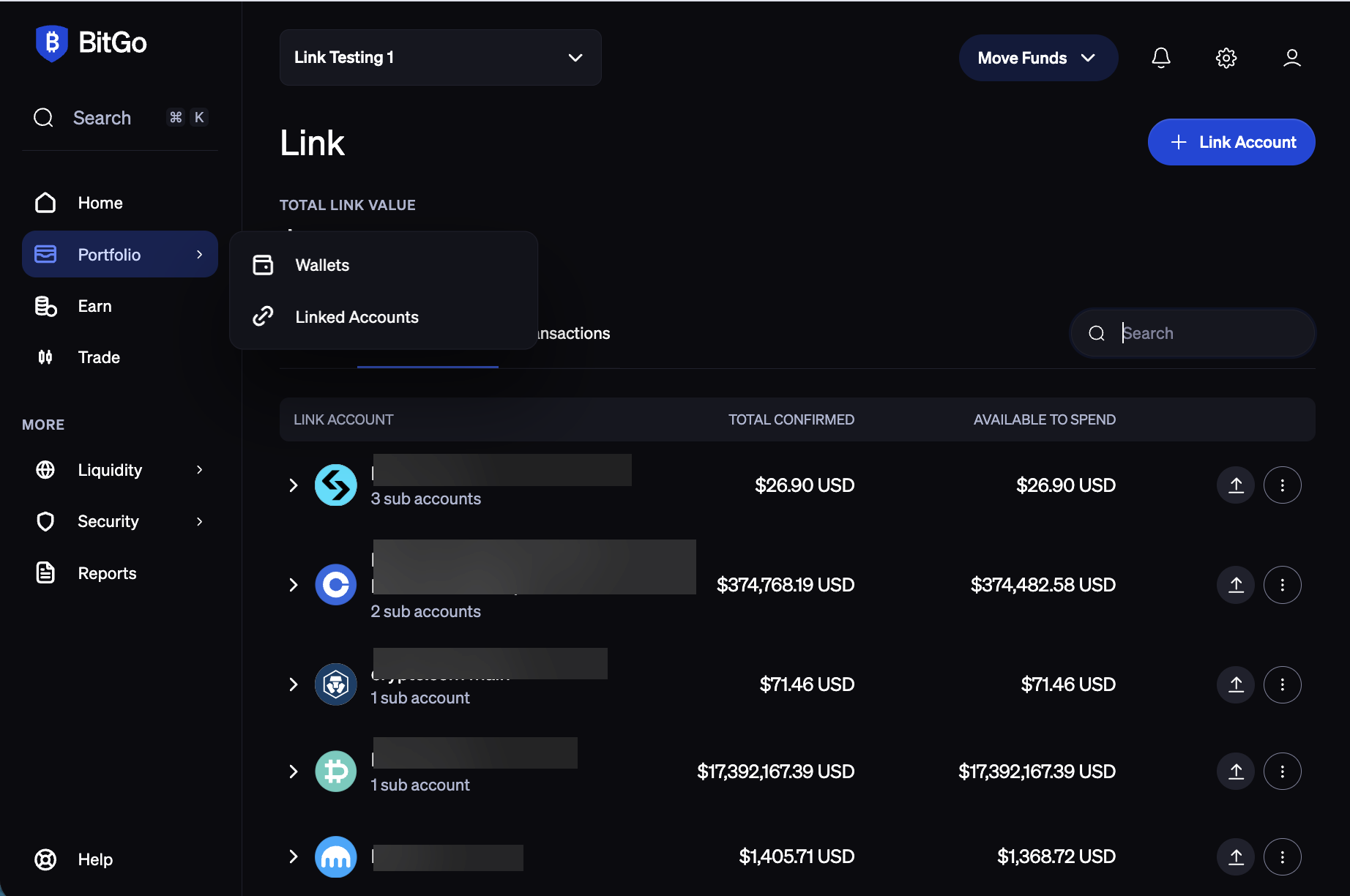
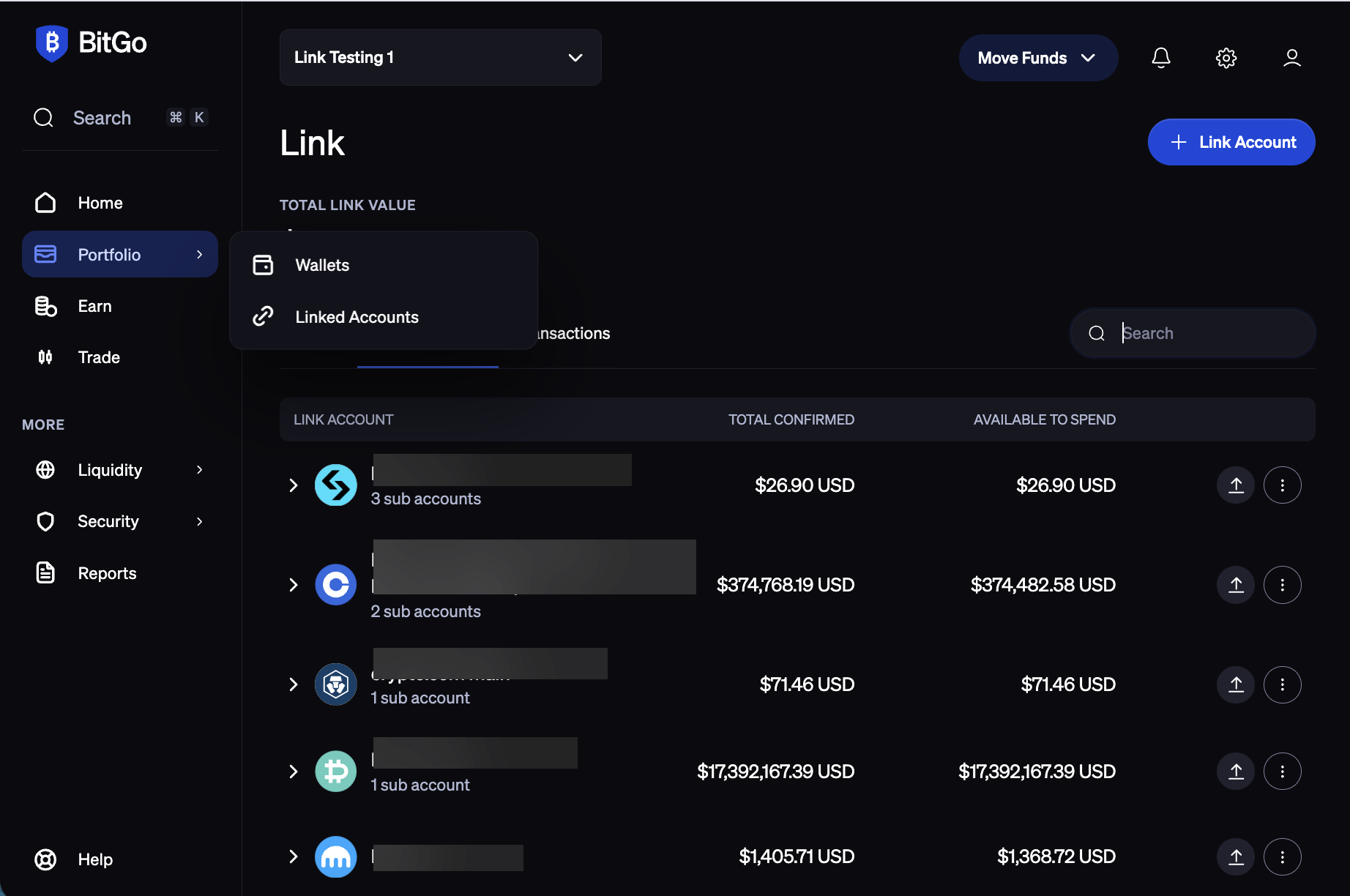
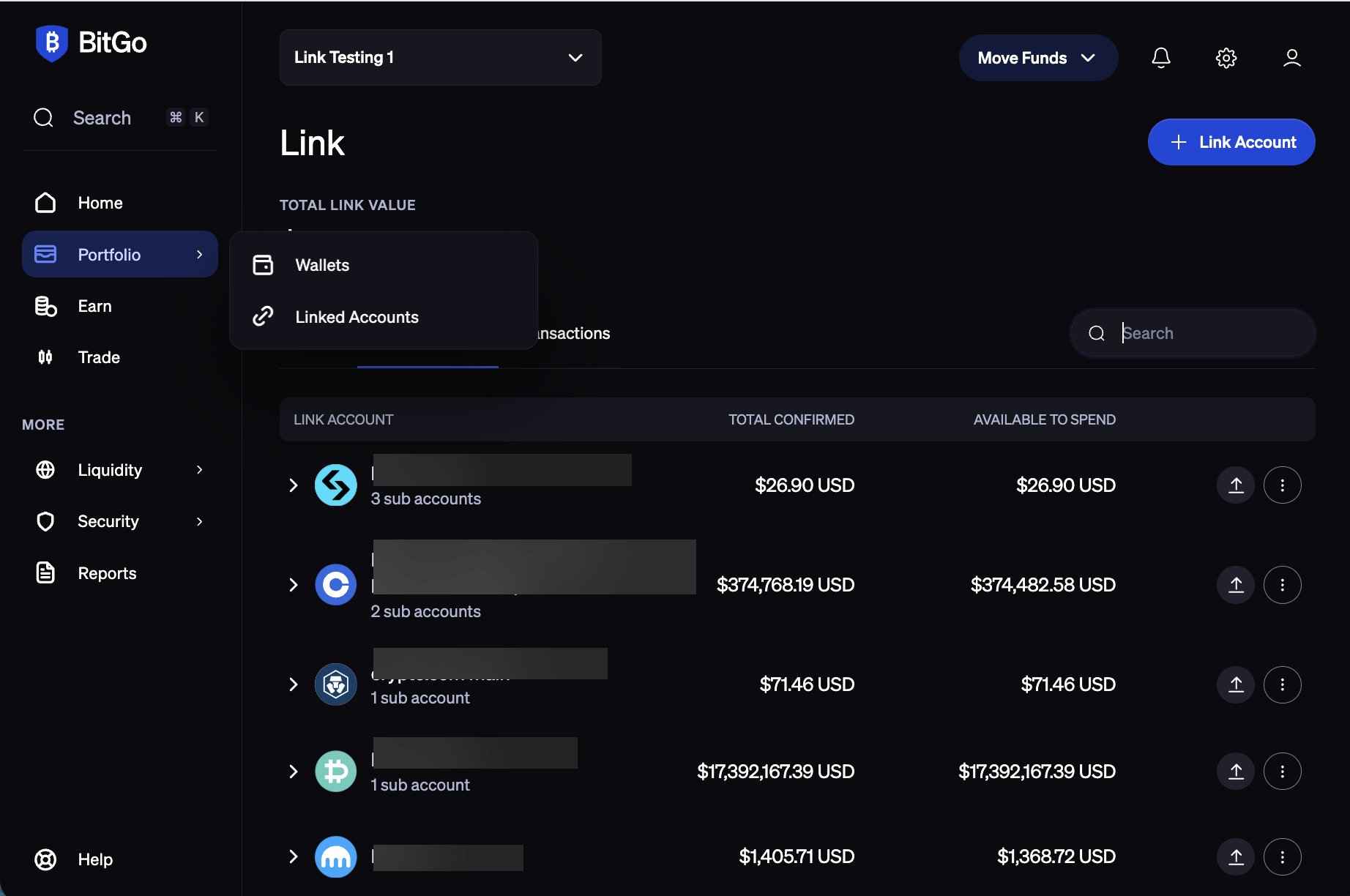
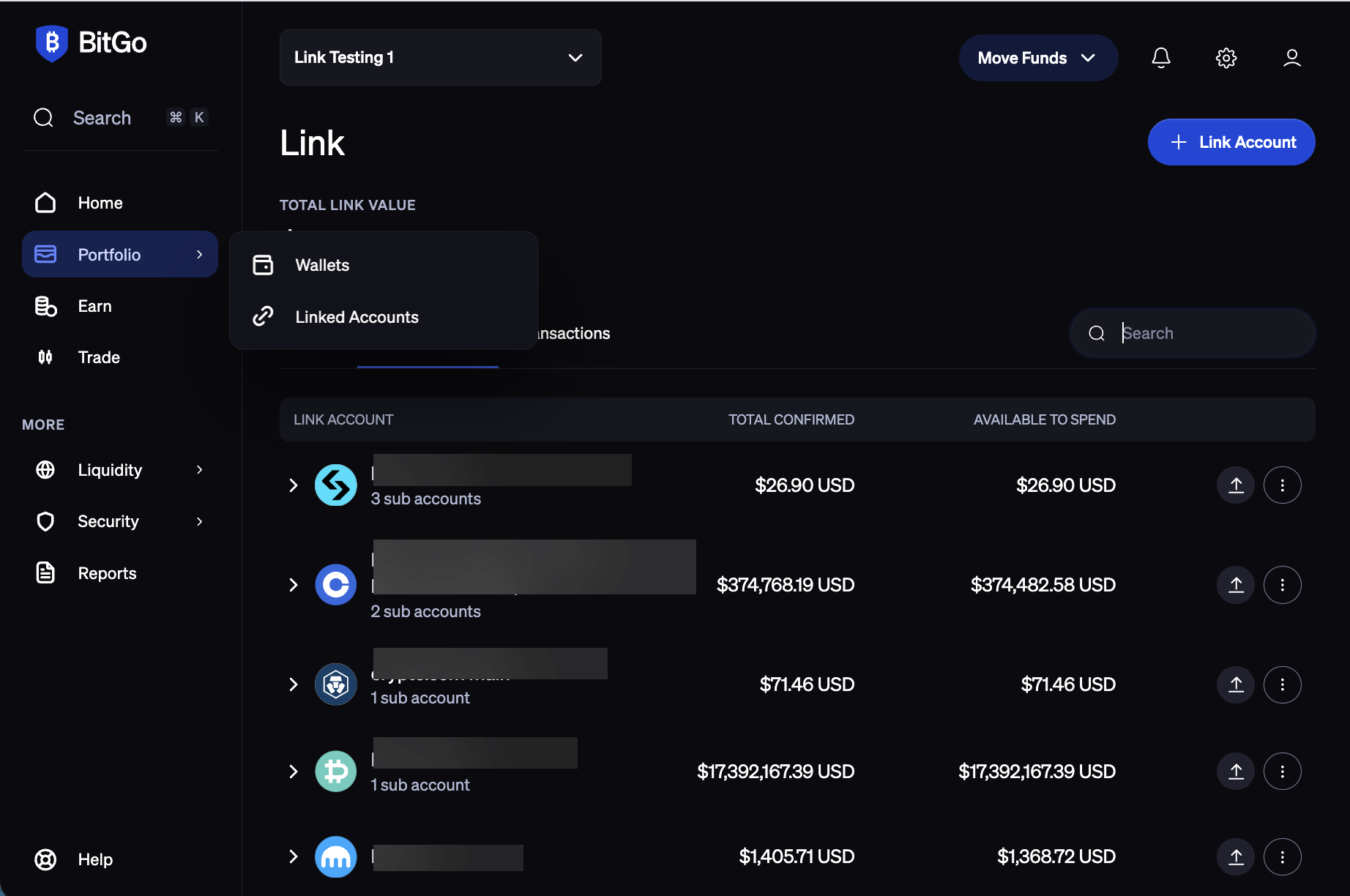
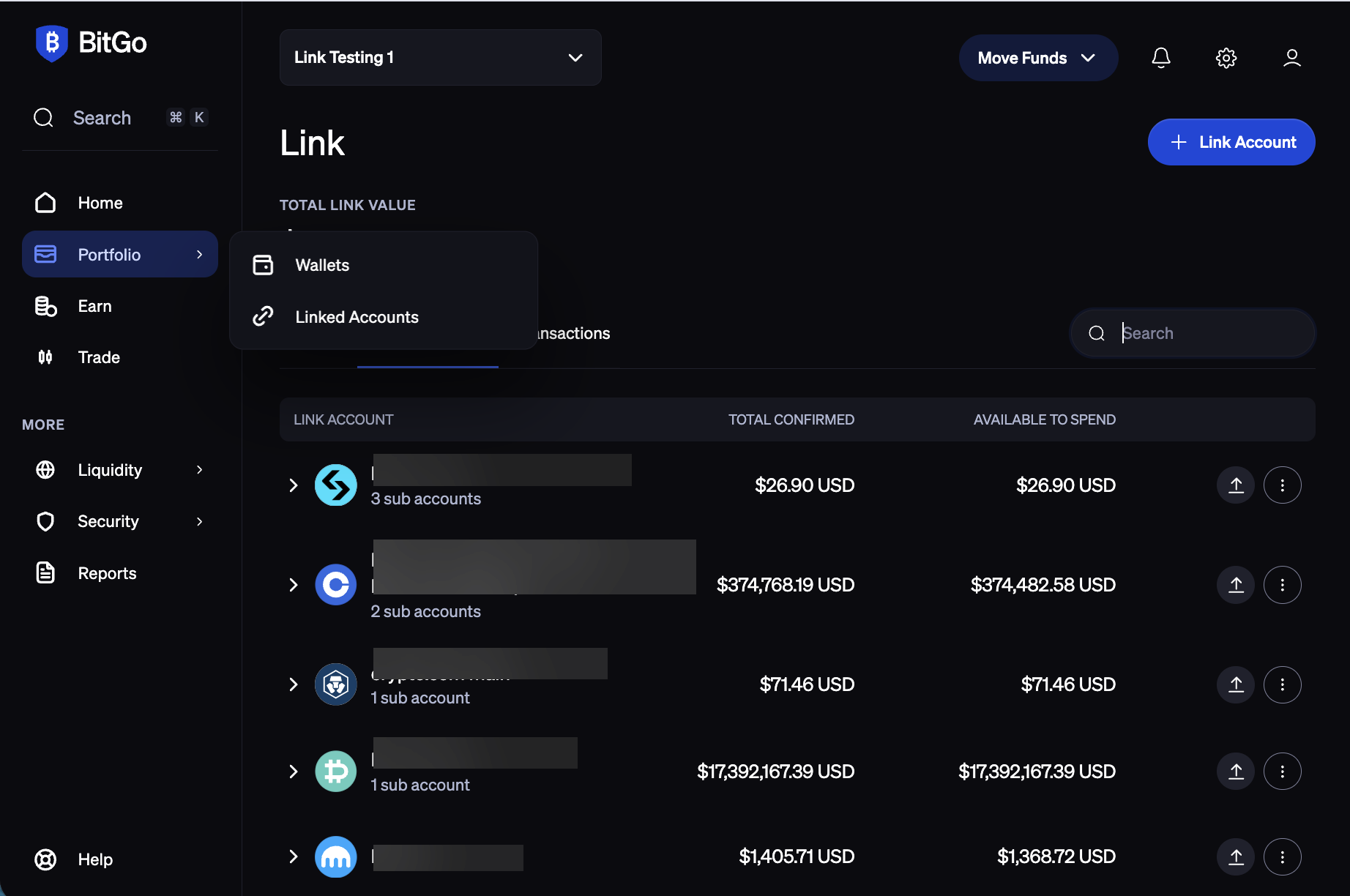
Navigate to the Portfolio > Linked Accounts page in BitGo and click + Link Account in the top-right corner.
Select Binance.
Enter your API Key, Secret Key, and Email associated with your main account then click Connect Account.
3. Create the sub account account API key on Binance
Before you start
Make sure you're on your binance sub account.
You'll create the API key in Binance’s API Management page, then enter the credentials into BitGo.
In API Management, click Create API and select System generated. Then click Edit restrictions to configure the key as follows:
Bind IP access restrictions — select “restrict access to trusted IPs only” allowlist these addresses:
18.156.154.77 52.59.4.20 18.181.121.216 3.114.177.123
Permissions: Set the appropriate permissions for your use case:
Enable Reading
Permits Universal Transfer
Before saving, be sure to copy your API Key and Secret Key in a secure location. Once you have done that, click save
5. Link your sub account on BitGo
Navigate to the Portfolio > Linked Accounts page in BitGo and navigate to the Linked Accounts tab.
Identify the row for the main account that the sub account is associated with and click the 3 dots on the right hand side of the row, then click View Details. Then click the 3 dots in the top right corner of the page and click + Add Sub Account
Enter your API Key, Secret Key, and Email associated with your sub account then click Connect Account.
Note
Due to how Binance handles api keys, if you turn portfolio margin mode on or off you will need to generate new api keys on binance for the account as instructed above and rotate the keys associated with your account in BitGo. See below for specific instructions on how to rotate for main/sub accounts.
For main account:
Navigate to Portfolio > Linked Accounts page in BitGo and navigate to the Linked accounts tab.
Identify the row for the main account and click the 3 dots on the right hand side of the row, then click Manage Connection
Enter your updated API Key and Secret Key along with Email associated with your account then click Save.
For sub account:
Navigate to Portfolio > Linked Accounts page in BitGo and navigate to the Linked accounts tab.
Identify the row for the main account that is the parent of your sub account and click the 3 dots on the right hand side of the row, then click View Details.
Identify the row for the affected sub account and click the 3 dots on the right hand side of the row and click Manage Connection.
Enter your updated API Key and Secret Key along with Email associated with your sub account then click Save.
Bitget
Before you start
Make sure you're on your main Bitget account.
You'll create the API key in Bitget's API Management page, then enter the credentials into BitGo.
1. Create the API key on Bitget
In API Management, click Create API Key and select System-generated API Key. Configure the key as follows:
Passphrase: choose your own.
The passphrase is required to modify the API key later. Keep it safe — if you lose it, you'll need to create a new API key.
Permissions: Set the appropriate permissions for your use case:
Futures: Orders & Holdings
Spot: Trade
Margin: Trade
Taxation: Search
Sub-accounts: Manage
Wallet: Transfer
Read-only access is sufficient to connect your account and view balances and positions. To enable transfers and withdrawals through BitGo, you will also need write permission on the relevant permission types.
Bind IP Permissions (optional) — allowlist these addresses:
54.201.131.213, 52.39.41.139, 52.43.255.93, 35.164.184.184, 54.214.57.139, 18.220.107.76, 18.222.87.170, 3.137.109.219, 18.156.154.77, 52.59.4.20
Click Next, then enter your 2FA and click Confirm. Bitget will display your API Key, Secret Key, and Passphrase.
2. Link your account on BitGo
Navigate to the Portfolio tab in BitGo and click + Link Account in the top-right corner.
Select Bitget.
Enter your API Key, Secret Key, and Passphrase, then click Connect Account.
ByBit
Before you start
- Make sure you're on your main ByBit Account.
- You'll create the API key in ByBit's API Key Management page, then enter the credentials into BitGo.
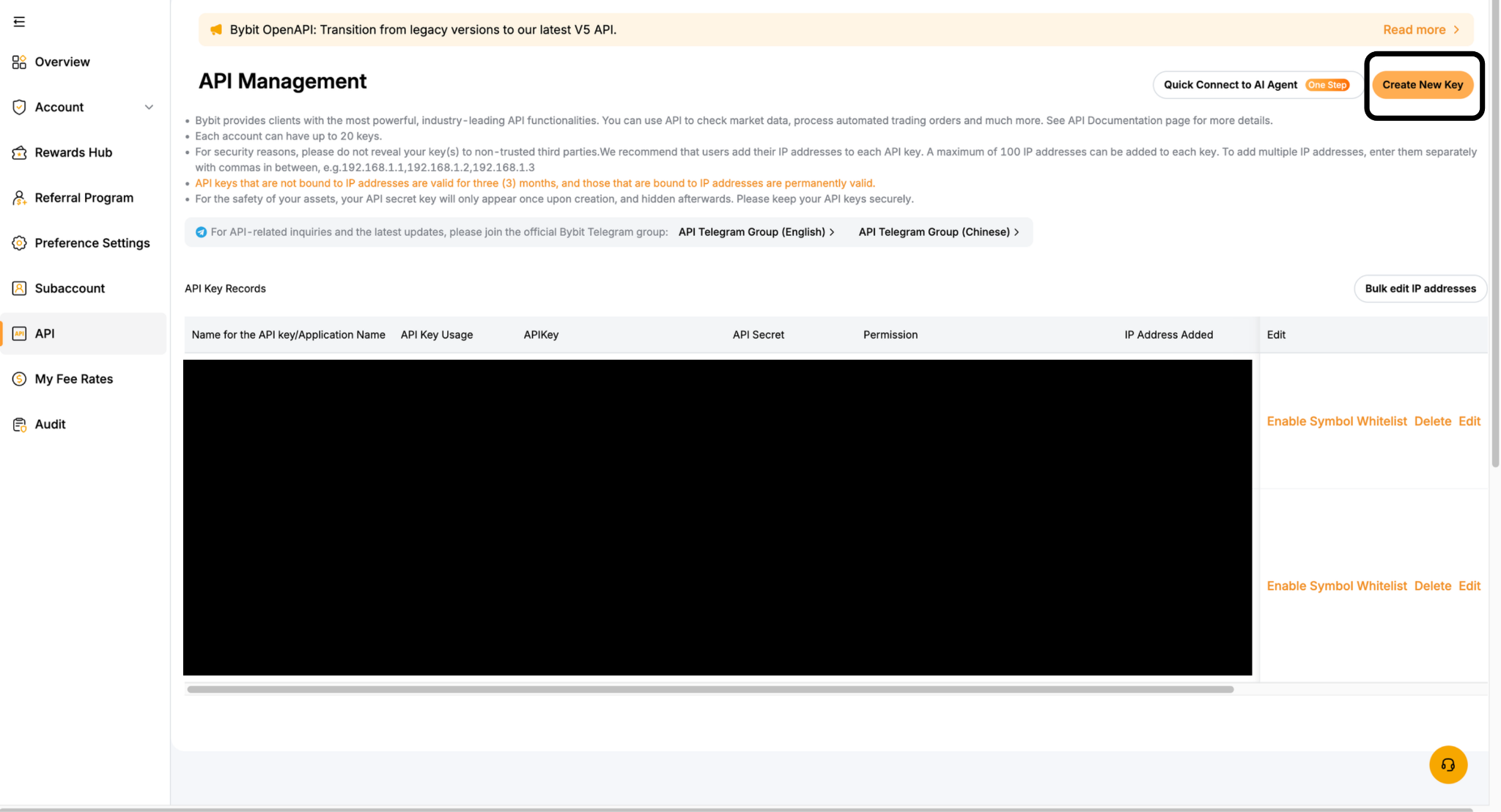
1. Create the API key on ByBit
In API Key Management, click Create New Key
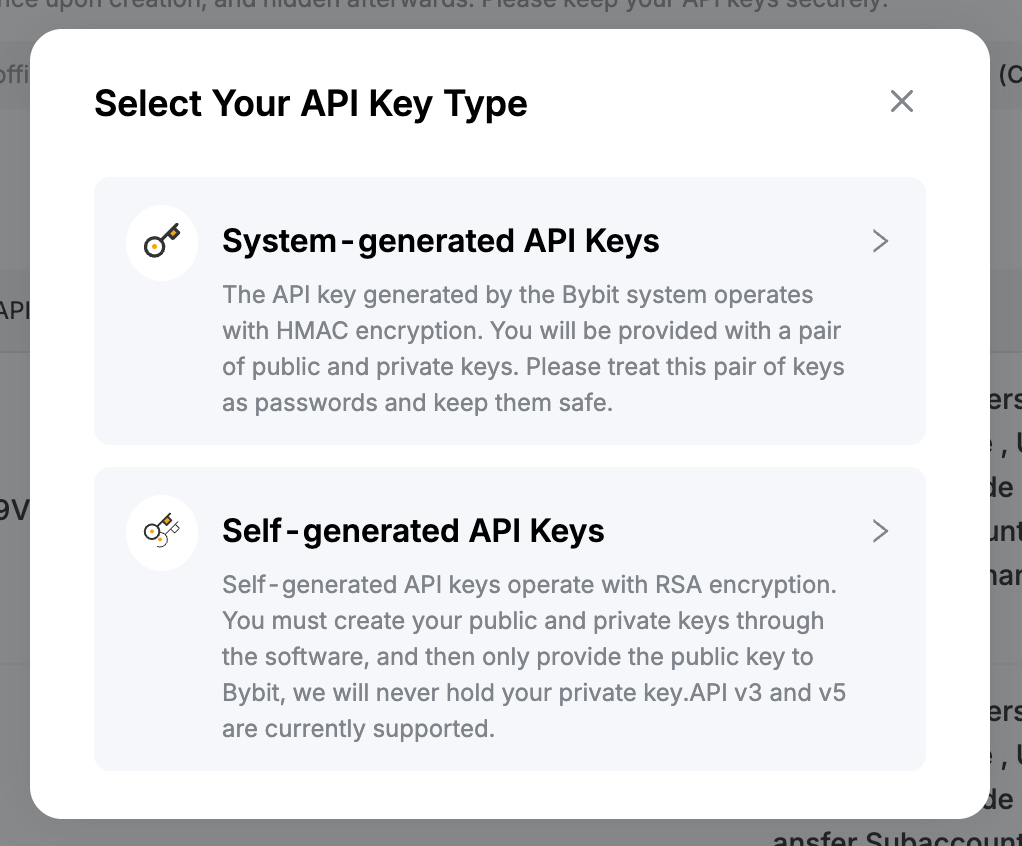
Configure the key as follows:
API Key Type: System-generated API Keys
API Key Usage: API Transaction
API Key Permissions: Read-Write (recommended)
IP Permissions — select Only IPs with permissions granted are allowed to access the API (recommended) and allowlist these addresses:
54.201.131.213,52.39.41.139,52.43.255.93,35.164.184.184,54.214.57.139,18.220.107.76,18.222.87.170,3.137.109.219,18.156.154.77,52.59.4.20
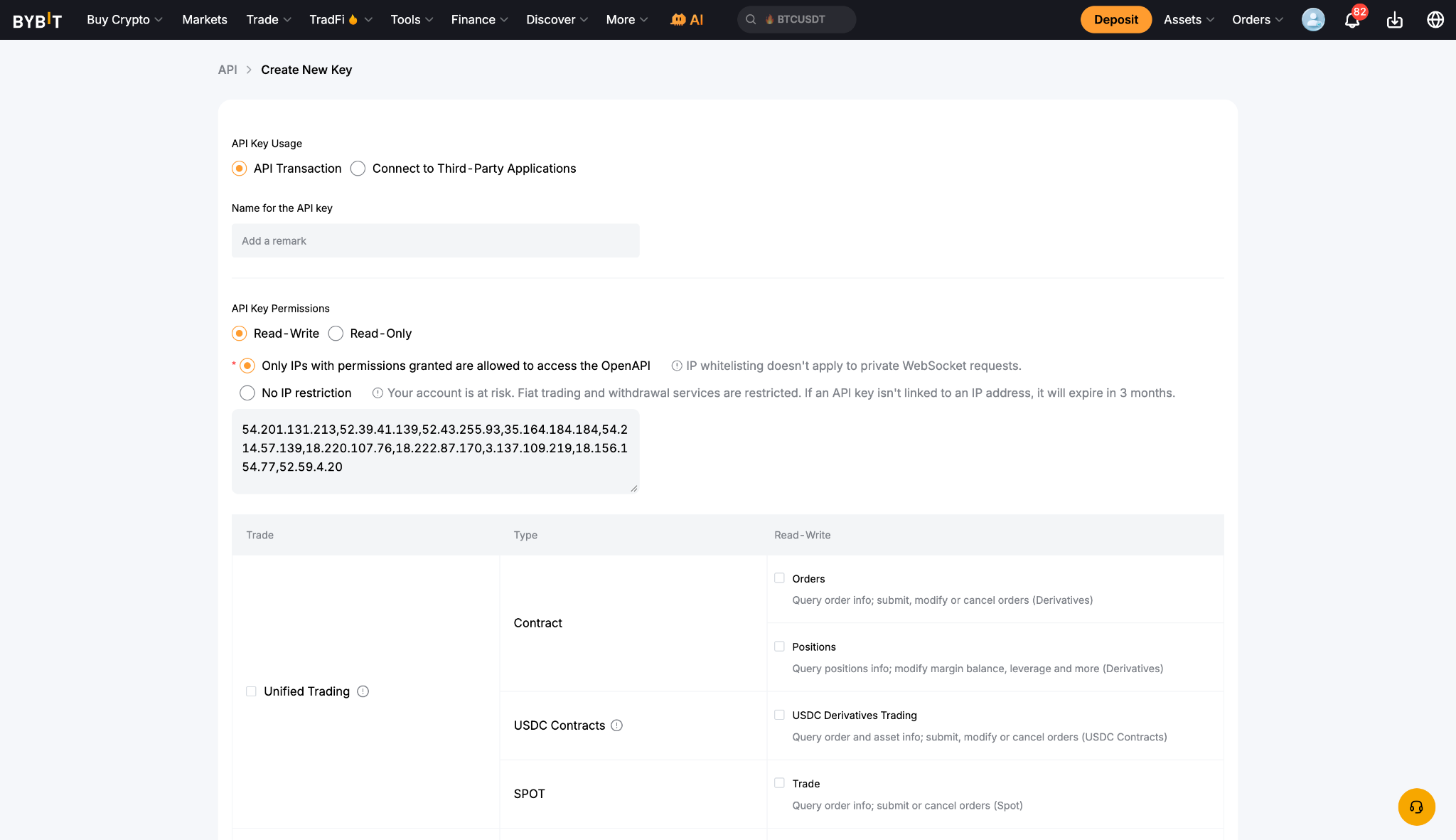
Permissions — set the appropriate level for each permission type:
Unified Trading
Earn
Fiat Trading
Assets
Click Submit and complete the security verification. ByBit will then display your Key and Secret.
2. Link your account on BitGo
Navigate to the Portfolio tab in BitGo and click + Link Account in the top-right corner.
Select ByBit.
Enter your API Key and Secret Key, then click Connect Account.
Coinbase Exchange
Before you start
You'll create the API key at exchange.coinbase.com/apikeys, then enter the credentials into BitGo.
1. Create the API key on Coinbase Exchange
On the API Keys page, click + New API Key and configure it as follows:
Portfolio: your default portfolio (the portfolio you deposit directly to and withdraw directly from).
Passphrase: choose your own. Remember this passphrase — you'll need to enter it in the BitGo UI.
Permissions: View is sufficient to connect your account and view balances and positions. To enable transfers and withdrawals through BitGo, you will also need the Transfer and Manage permissions.
IP Whitelist — allowlist these addresses:
54.201.131.213/32, 52.39.41.139/32, 52.43.255.93/32, 35.164.184.184/32, 54.214.57.139/32, 18.220.107.76/32, 18.222.87.170/32, 3.137.109.219/32, 18.156.154.77/32, 52.59.4.20/32
Click Create API Key and complete 2-step verification.
The next screen shows your API Secret — copy it now, as it's only shown once. Find your new key in the list to retrieve your API Key ID.
2. Link your account on BitGo
Navigate to the Portfolio tab in BitGo and click + Link Account in the top-right corner.
Select Coinbase Exchange.
Enter your API Key, API Secret, and Passphrase, then click Connect Account.
Crypto.com
Before you start
Make sure you're on your master account.
You'll create the API key at Crypto.com Account API Management, then enter the credentials into BitGo.
1. Create the API key on Crypto.com
On the API Management page, click Create a New API Key and configure it as follows:
Complete 2FA if prompted.
Permissions: Trading permission is not required. Read access is sufficient to connect your account and view balances and positions. To enable transfers and withdrawals through BitGo, you will also need the Withdrawal permission.
IP Whitelist (optional) — allowlist these addresses:
54.201.131.213, 52.39.41.139, 52.43.255.93, 35.164.184.184, 54.214.57.139, 18.220.107.76, 18.222.87.170, 3.137.109.219, 18.156.154.77, 52.59.4.20
After creating the key, copy the Secret Key — it's only shown once. Click Edit on the newly created key to retrieve your API Key.
NOTE: When withdrawing to Crypto.com, you must first generate deposit addresses manually on their platform. This venue unfortunately does not support an integration for address generation.
2. Link your account on BitGo
Navigate to the Portfolio tab in BitGo and click + Link Account in the top-right corner.
Select Crypto.com.
Enter your API Key and Secret Key, then click Connect Account.
Gate
Before you start
Make sure you're on your main Gate account.
You'll create the API key in Gate's API Key Management page, then enter the credentials into BitGo.
1. Create the API key on Gate
In API Key Management, click Create API Key and select Trading Account. Configure the key as follows:
API Key Type: API v4 Key
Account Type: Trading Account
IP Permissions — select Bind IP (recommended) and allowlist these addresses:
54.201.131.213/32, 52.39.41.139/32, 52.43.255.93/32, 35.164.184.184/32, 54.214.57.139/32, 18.220.107.76/32, 18.222.87.170/32, 3.137.109.219/32, 18.156.154.77/32, 52.59.4.20/32
Permissions — set the appropriate level for each permission type:
Spot Trade
Perp Futures
Delivery Futures
Wallet
Sub Account
Account
Margin Trading (Unified Account)
Read-only access is sufficient to connect your account and view balances and positions. To enable transfers and withdrawals through BitGo, you will also need write permission on the relevant permission types.
Click Submit, accept the agreement, and complete the security verification. Gate will then display your Key and Secret.
2. Connect on BitGo
Navigate to the Portfolio tab in BitGo and click + Link Account in the top-right corner.
Select Gate.
Enter your Key under API Key and your Secret under API Secret, then click Connect Account.
Kraken (Spot)
Before you start
You'll create the API key on Kraken's API settings page, then enter the credentials into BitGo.
1. Create the API key on Kraken
On Kraken's API settings page, click Create API Key and configure it as follows:
Description: Link Key
Permissions: Read access is sufficient to connect your account and view balances and positions. To enable transfers and withdrawals through BitGo, you will also need write permission.
After creating the key, Kraken will display your API Key and Secret Key.
2. Link your account on BitGo
Navigate to the Portfolio tab in BitGo and click + Link Account in the top-right corner.
Select Kraken Spot.
Enter your API Key and Secret Key, then click Connect Account.
OKX
Region availability (as of July 2026): Link currently supports OKX in the EU region only. Other regions are coming soon.
Before you start
Make sure you're on your main OKX account.
You'll create the API key in OKX's API Management page, then enter the credentials into BitGo.
1. Create the API key on OKX
In API Management, click Create API Key and configure it as follows:
Passphrase: choose your own.
The passphrase is required to view API info and access its interface. OKX cannot recover a lost passphrase — you'll need to create a new API key if you lose it.
IP Address Allowlist (optional) — allowlist these addresses:
54.201.131.213/32, 52.39.41.139/32, 52.43.255.93/32, 35.164.184.184/32, 54.214.57.139/32, 18.220.107.76/32, 18.222.87.170/32, 3.137.109.219/32, 18.156.154.77/32, 52.59.4.20/32
Permissions: Read access is sufficient to connect your account and view balances and positions. To enable transfers and withdrawals through BitGo, you will also need write permission. For intra-account transfers (e.g. between Funding and Trading), the key needs a Trading permission as well.
Click Submit and complete the security verification. OKX will then display your Key and Secret.
2. Link your account on BitGo
Navigate to the Portfolio tab in BitGo and click + Link Account in the top-right corner.
Select OKX.
Enter your Key under API Key and your Secret under API Secret, then click Connect Account.
Was this article helpful?
That’s Great!
Thank you for your feedback
Sorry! We couldn't be helpful
Thank you for your feedback
Feedback sent
We appreciate your effort and will try to fix the article