Mint and Redeem User Guide
This article explains the steps users for users to Mint and Redeem Assets in the Bitgo platform.
BitGo Mint lets you access supported digital assets — seamlessly minting and redeeming directly in your Go Account. This guide walks through placing a mint order, tracking it to completion, and redeeming (burning) an asset back to its source.
Who this is for: BitGo Mint is currently available to BitGo Bank & Trust interest clients only. As more assets come online, BitGo may open the product to clients outside Bank & Trust as well, depending on jurisdiction.
Assets available today: Some assets available today include USD1, SoFi USD (SOFID), and USDC. Contact your account manager for the current asset list on BitGo Mint.
Note: Other assets you may see listed in this guide’s screenshots (FYUSD, GOUSD, QXMP) are not yet available to any client, and merely used for demonstration purposes.
Key Terms
Mint: Convert a source asset (for example, USD) into a supported digital asset (for example, USD1) on a network you choose.
Redeem (Burn): Convert a minted asset back into its source asset.
Source Asset: What you're converting from. This varies by target asset — for example, USD is the source for USD1 and USDC, while Euro is the source for EURC.
Destination: Where the minted asset lands — your Go Account, a segregated BitGo wallet, or (for some assets) an external wallet address, subject to per-asset restrictions.
Issuer: The entity responsible for the asset. BitGo is the issuer of USD1; SoFi is the issuer of SoFi USD. This affects who ultimately sets fees on that asset.
Section 1: Minting an Asset
Step 1: Go to Liquidity > Mint. This lists every asset eligible for minting, along with your total balance per asset and the current mint/redeem fee for each.
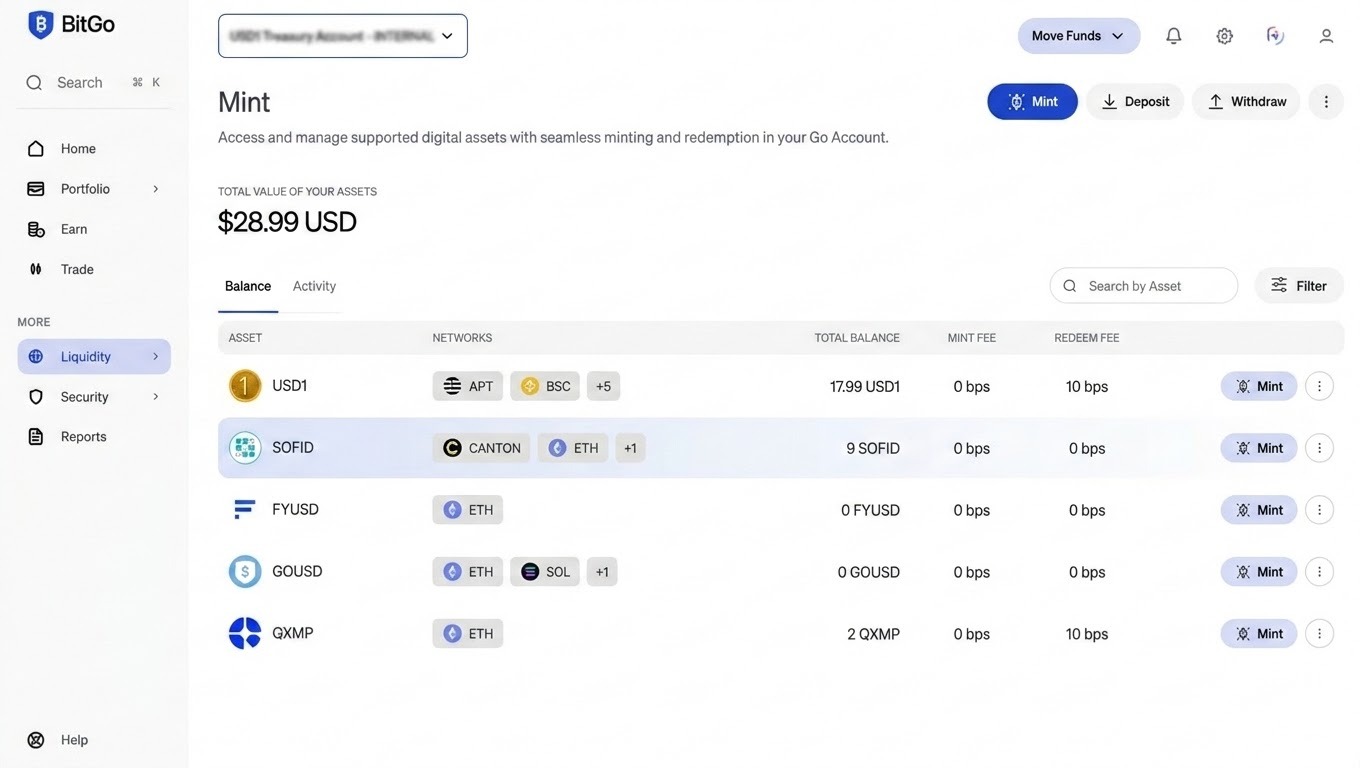
The Mint page: eligible assets, balances, and mint/redeem fees.
Step 2: Select Mint next to the asset you want (for example, USD1). Choose the network you want to mint on, and the source asset you're converting from. Some networks may be under testing and not yet available.
Step 3: Choose your destination — your Go Account, a segregated BitGo wallet, or an external wallet address.
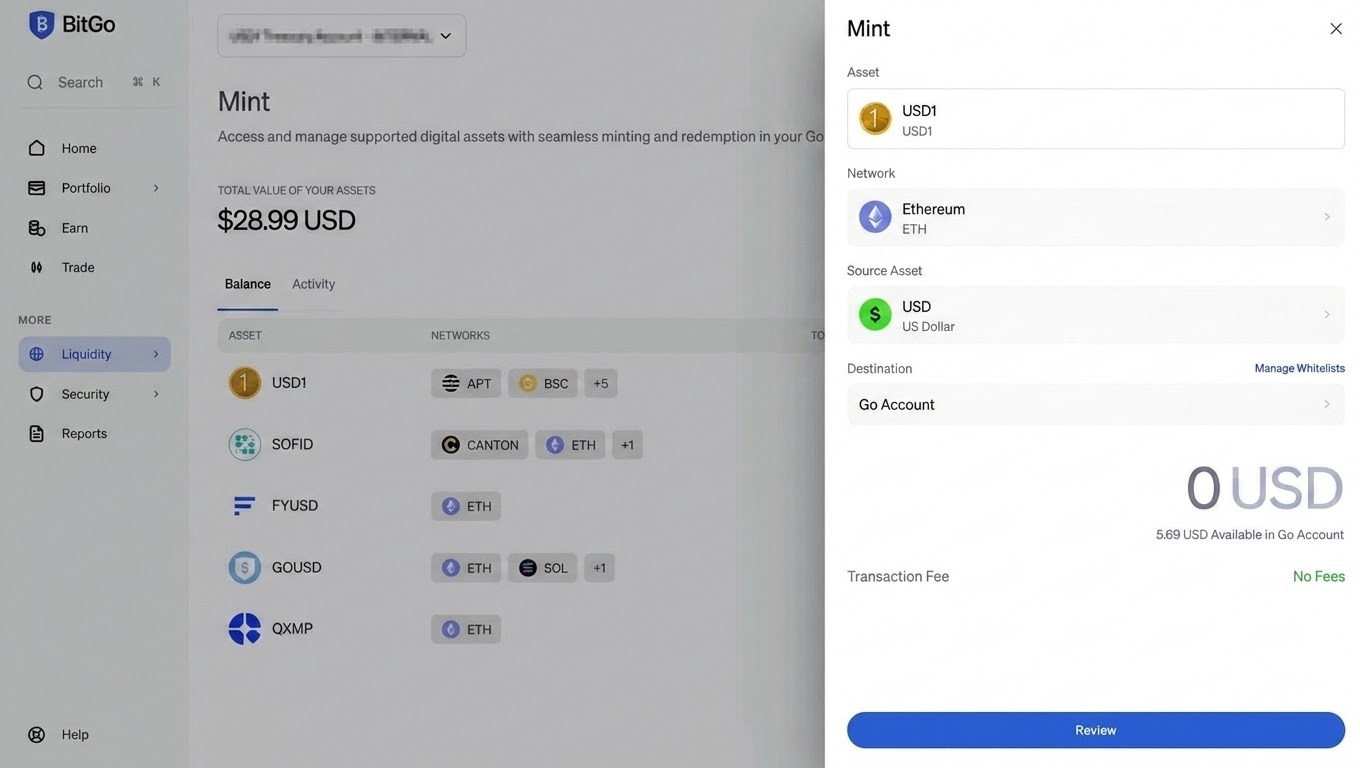
Selecting the asset, network, source asset, and destination.
Step 4: Enter the amount to convert. Any transaction fee is shown here before you proceed — in this example (which is only used for demonstration purposes), minting USD1 carries no mint fee, only the applicable network fee.
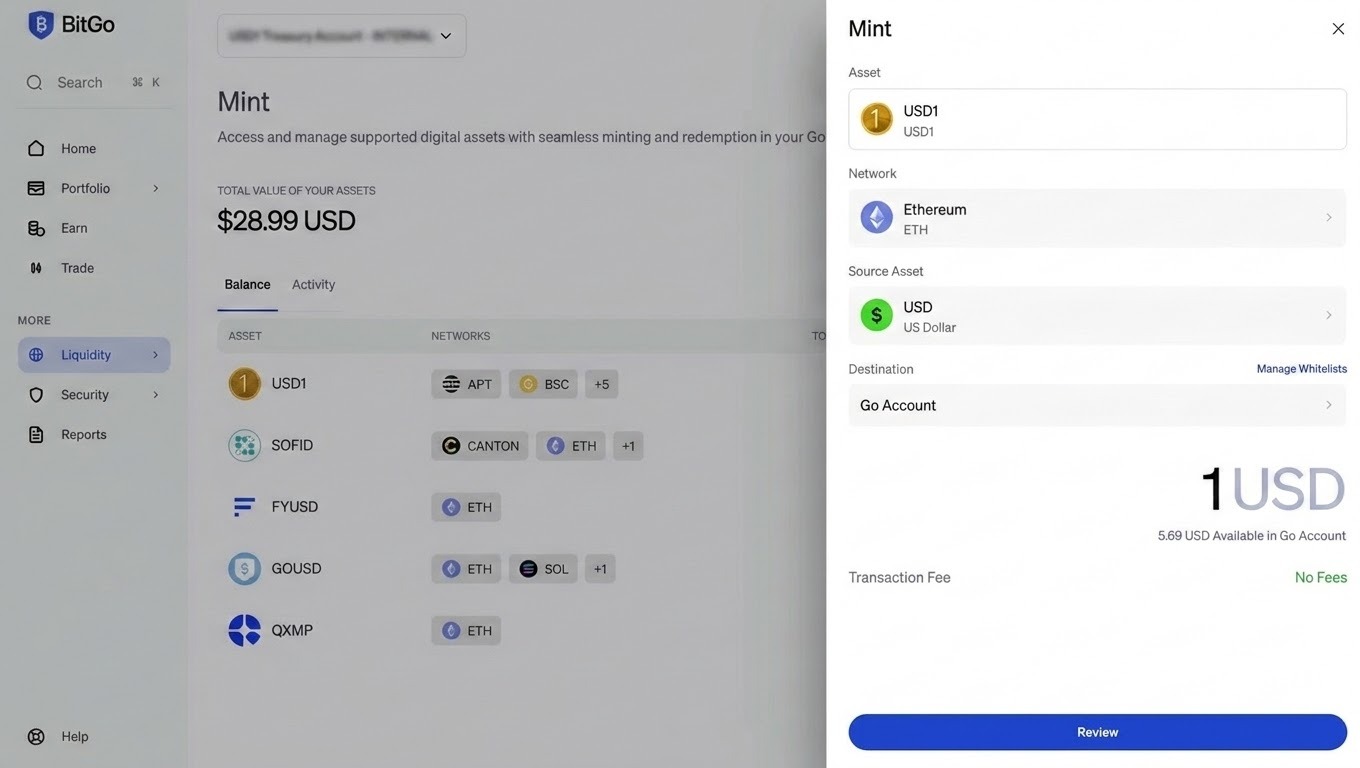
Entering the mint amount. No mint fee is charged in this example.
Step 5: Review the order details, then authenticate with your Go Account password and OTP code to sign the transaction.
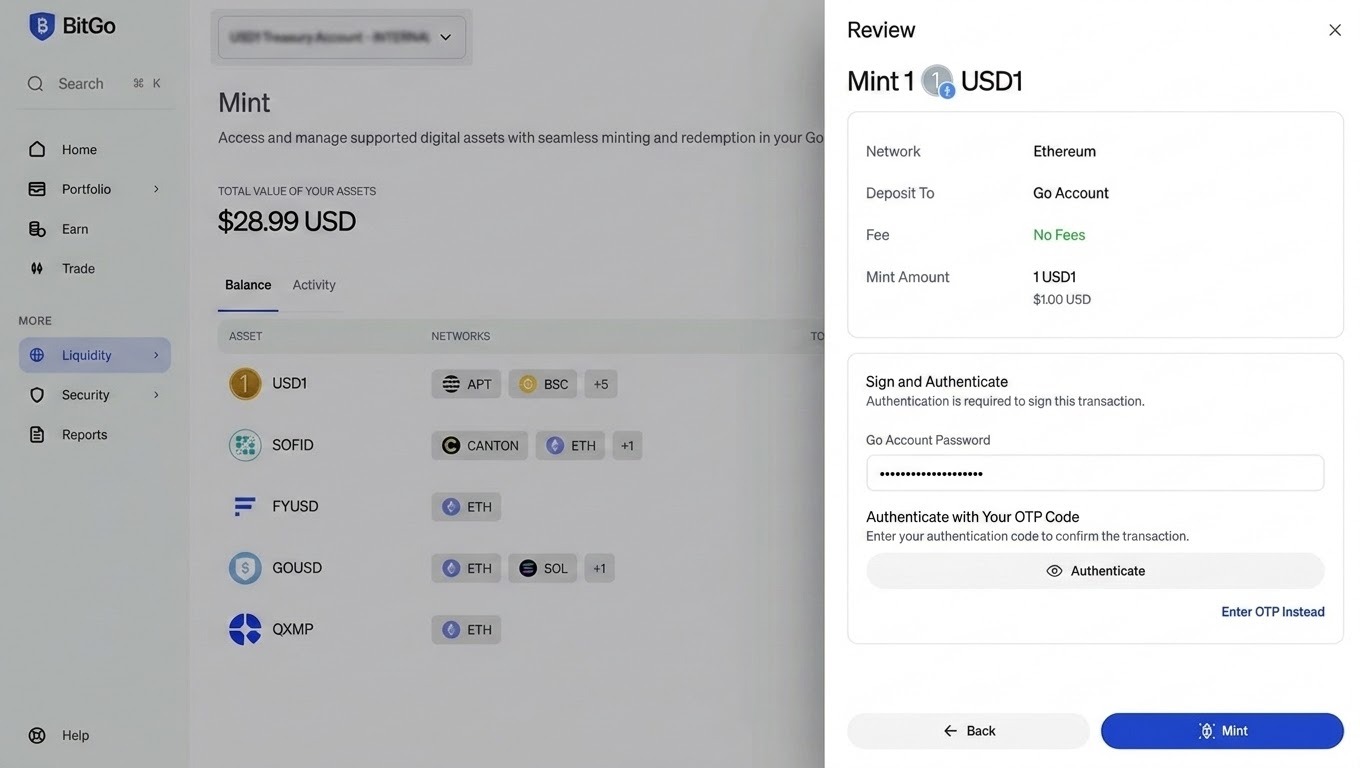
Reviewing and authenticating the mint order.
Note: Every mint or redeem order routes to the Trust team for approval before it proceeds to the minting/redemption cycle. This adds processing time beyond the moment you place the order — the order won't complete instantly, even though it shows as submitted right away.
Step 6: Once submitted, you'll see a confirmation with the order's progress. A mint order has three stages: Order Created, Deposit Confirmed, and Order Fulfilled.
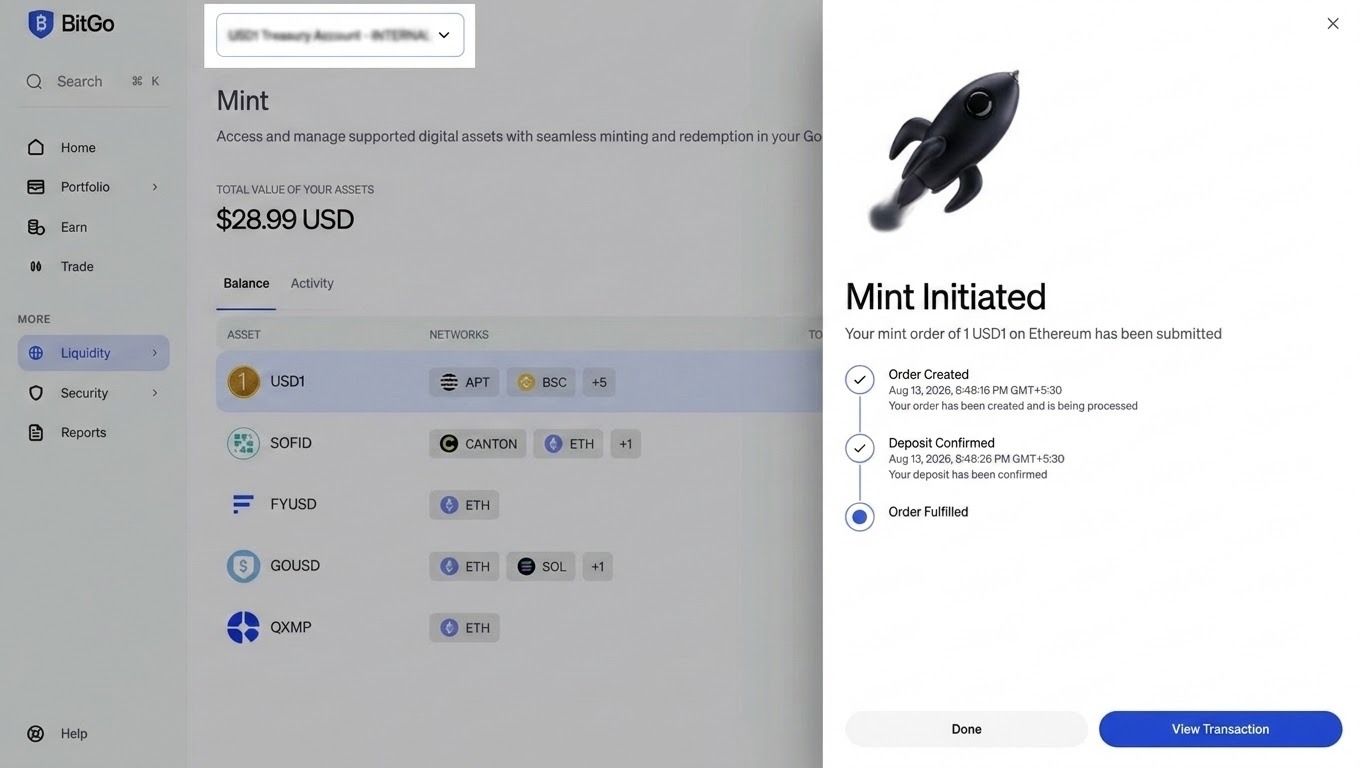
Mint order submitted, showing the three-stage progress.
Section 2: Tracking Your Order
Step 1: Go to the Activity tab to see every mint and redeem order on the account — type, source amount, destination amount, transaction ID, and status.
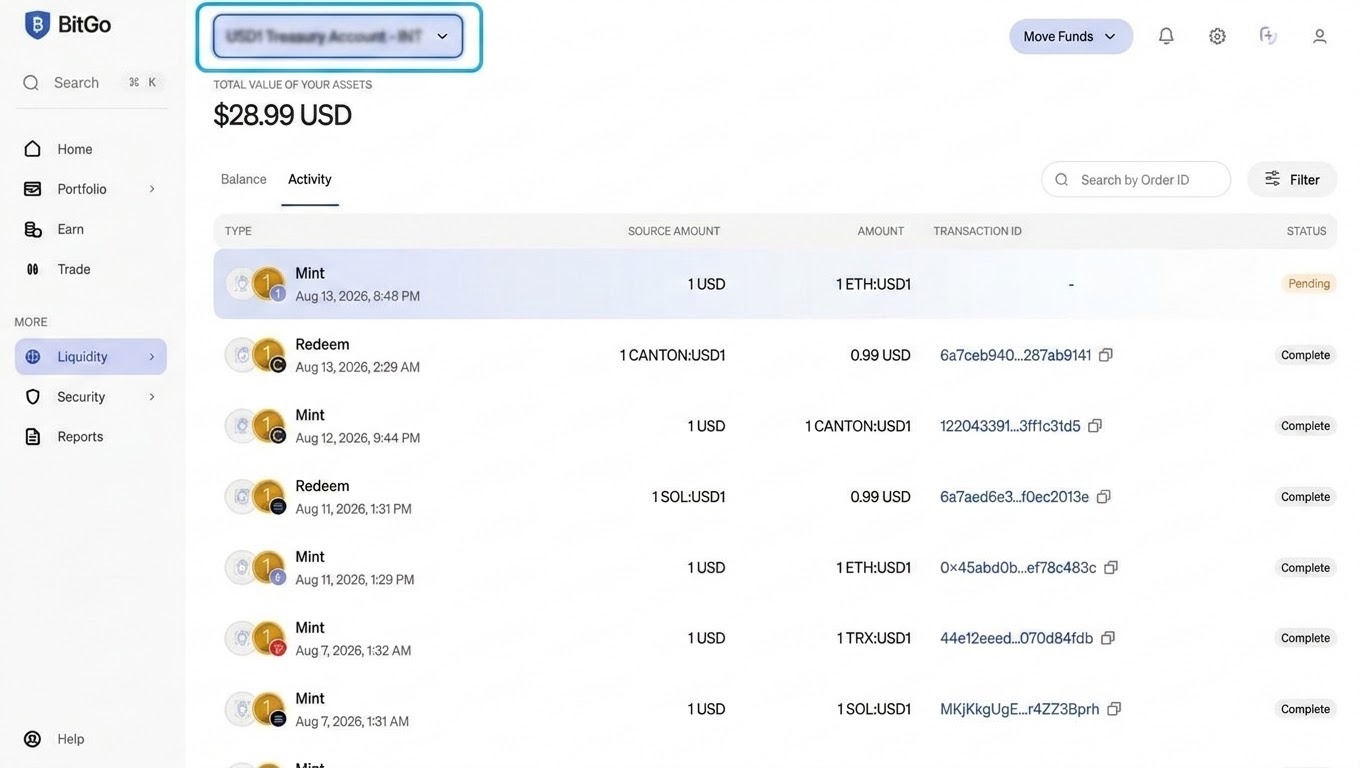
The Activity tab, listing all mint and redeem history.
Step 2: Select an order to open its Timeline view, which shows the same stage-by-stage progress as the confirmation screen.
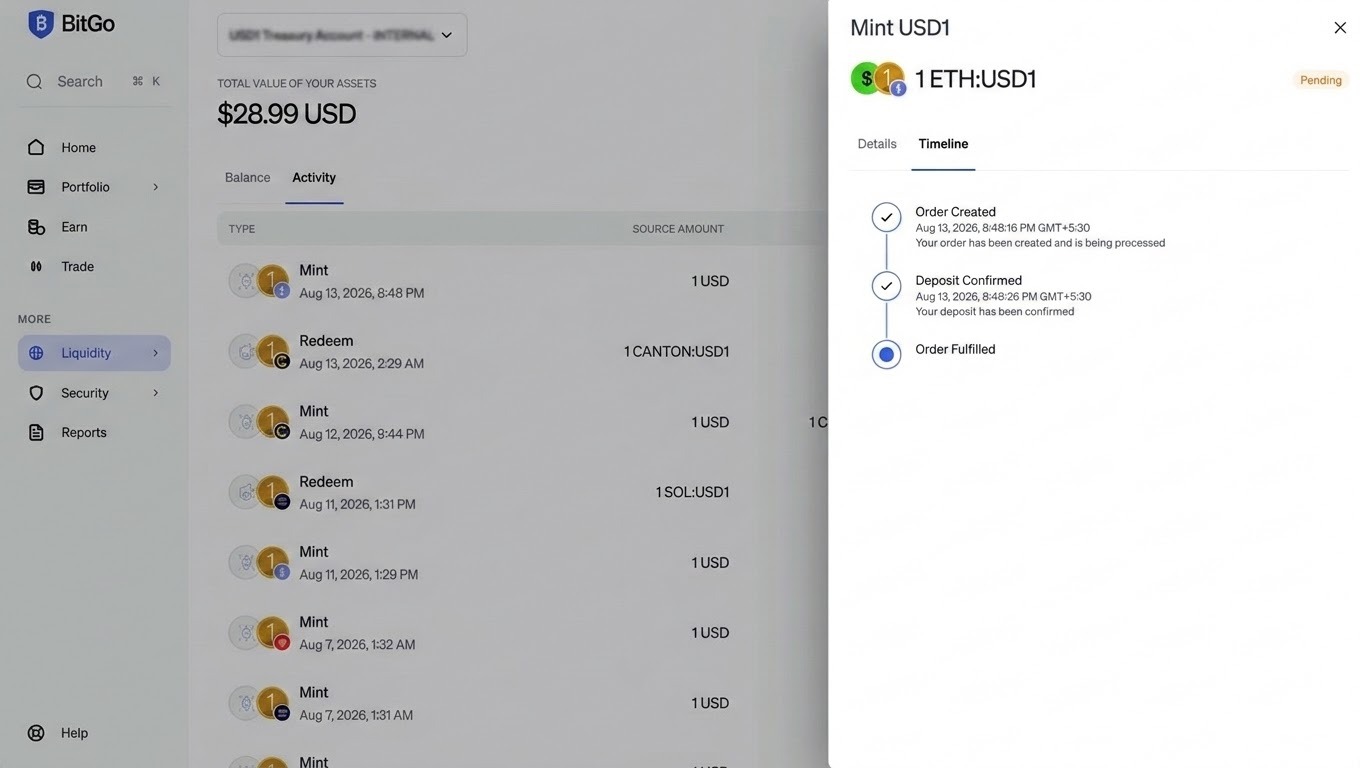
Timeline view for a mint order: Order Created, Deposit Confirmed, Order Fulfilled.
Section 3: Asset Details
Step 1: Select an asset from the Mint page to see its detail page — balances by network, asset type, issuer, supported chains, minimum mint and redeem amounts, and current mint/redemption fees.
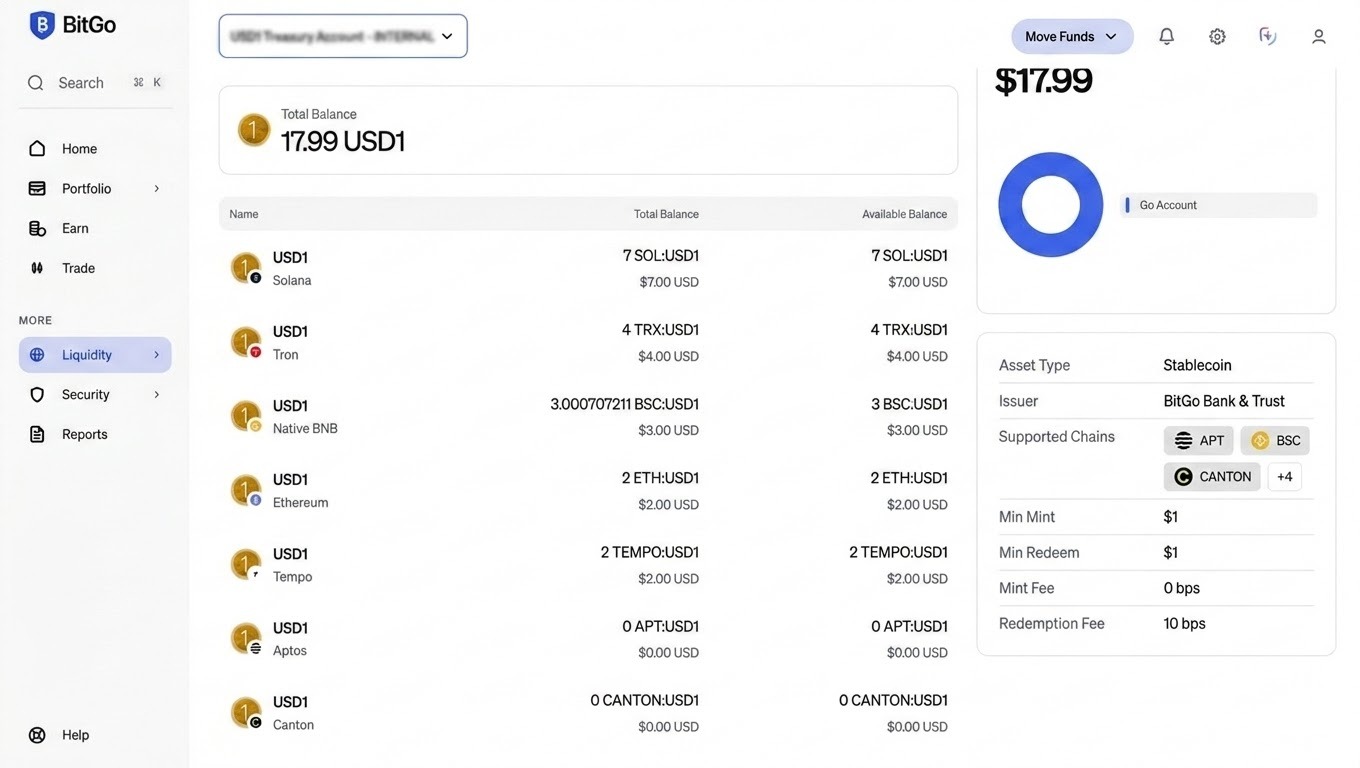
USD1 asset details: issuer, supported chains, minimums, and fees.
Section 4: Redeeming (Burning) an Asset
Step 1: From the Mint page, select Redeem next to the asset you want to convert back. Choose the network to redeem from and the destination asset. The transaction fee for redemption is shown here.
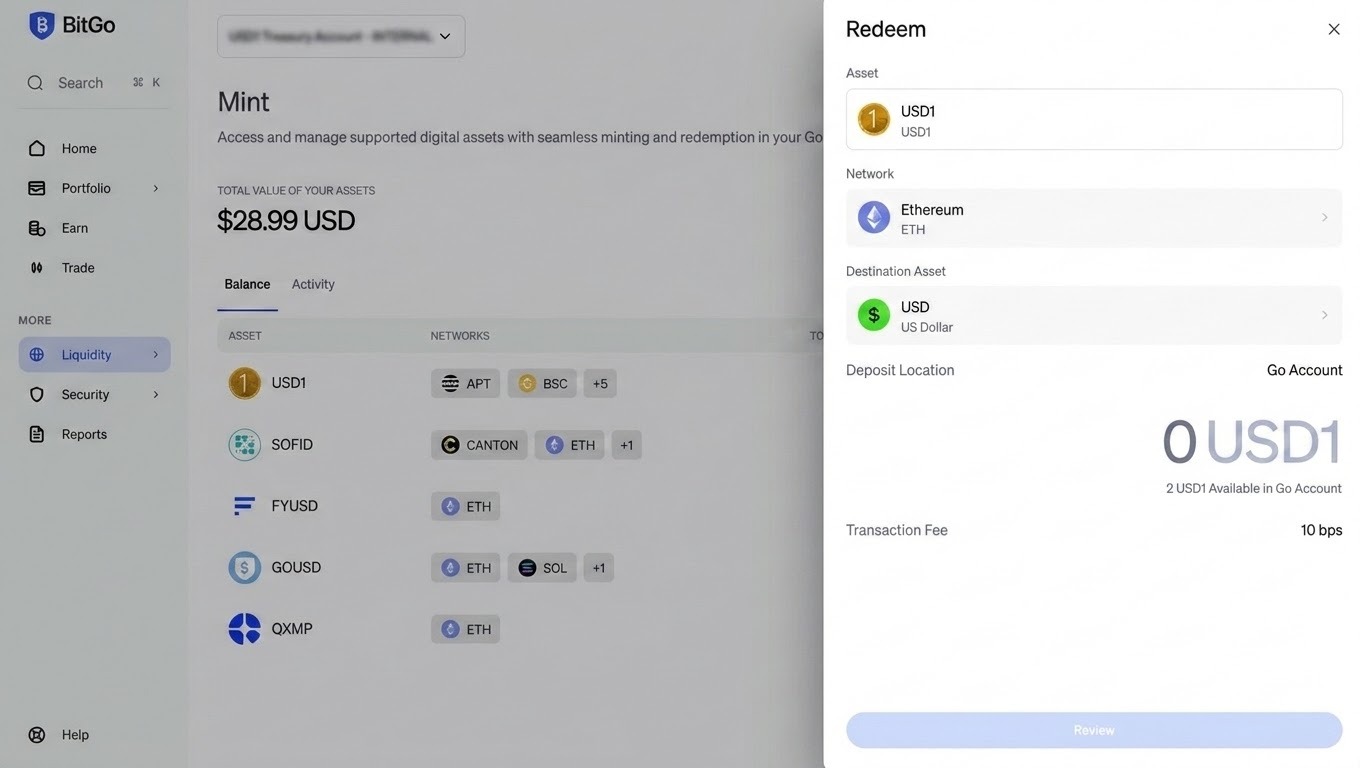
Redeeming USD1 back to USD: destination asset and transaction fee.
Step 2: Enter the amount, review the redemption amount you'll receive after fees, then authenticate to place the order.
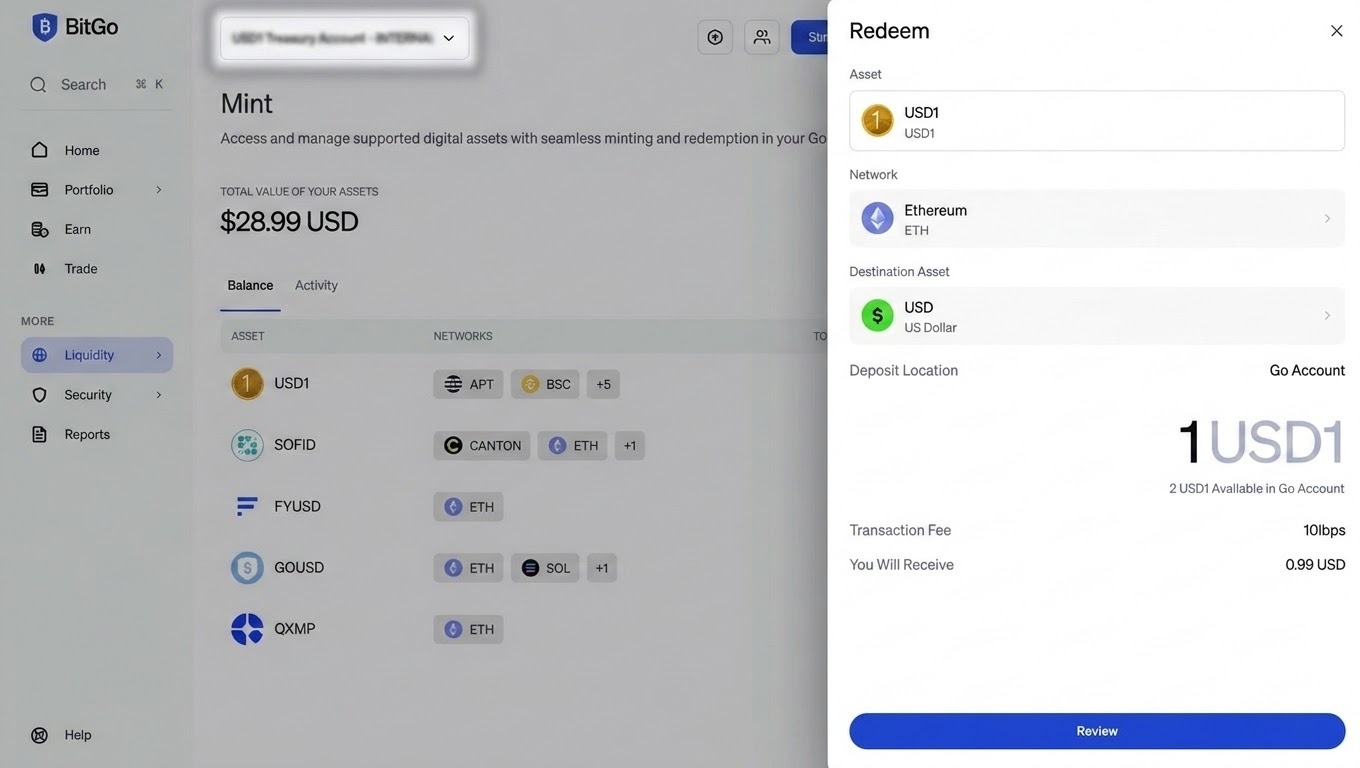
Reviewing the redemption amount before authenticating.
Step 3: A redeem (burn) order has four stages, one more than a mint order: Order Created, Confirming Deposit, Burn Tokens, and Order Fulfilled.
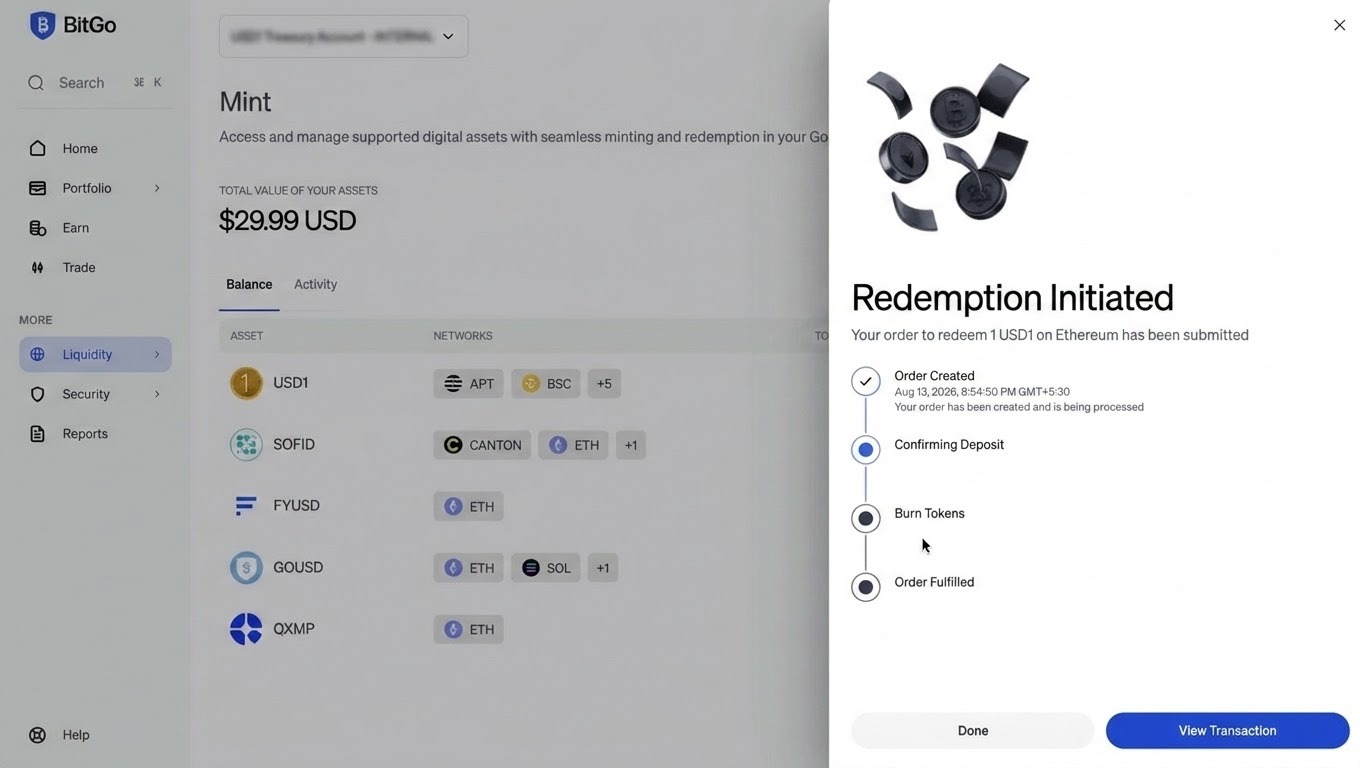
Redemption submitted, showing the four-stage progress.
How Fees Work
Some mint and redeem orders carry a flat, pre-disclosed fee, shown at order confirmation before a client commits. Fees vary depending on the asset. Contact your account manager for the current fee schedule.
Frequently Asked Questions
Which assets can I mint today? Some assets you can mint today include USD1, SoFi USD (SOFID), and USDC for BitGo Bank & Trust interest clients. Contact your account manager for the current asset list on BitGo Mint.
Is BitGo the issuer of every asset I can mint? No. BitGo is the issuer of USD1. SoFi is the issuer of SoFi USD. The issuer affects who ultimately sets the fee on that asset.
Does every order need approval? Yes — every mint and redeem order routes to the Trust team for approval before the minting or redemption cycle runs. Build in time for this when minting and burning.
Was this article helpful?
That’s Great!
Thank you for your feedback
Sorry! We couldn't be helpful
Thank you for your feedback
Feedback sent
We appreciate your effort and will try to fix the article