Link Your External Coinbase Exchange Account
This guide covers how to create an API keys on the Coinbase exchange to Link your account to BitGo.
Before you start
You'll create the API key at exchange.coinbase.com/apikeys, then enter the credentials into BitGo.
1. Create the API key on Coinbase Exchange
On the API Keys page, click + New API Key and configure it as follows:
Portfolio: your default portfolio (the portfolio you deposit directly to and withdraw directly from).
Passphrase: choose your own. Remember this passphrase — you'll need to enter it in the BitGo UI.
Permissions: View is sufficient to connect your account and view balances and positions. To enable transfers and withdrawals through BitGo, you will also need the Transfer and Manage permissions.
IP Whitelist — allowlist these addresses:
- 54.201.131.213/32
- 52.39.41.139/32
- 52.43.255.93/32
- 35.164.184.184/32
- 54.214.57.139/32
- 18.220.107.76/32
- 18.222.87.170/32
- 3.137.109.219/32
- 18.156.154.77/32
- 52.59.4.20/32
Click Create API Key and complete 2-step verification.
The next screen shows your API Secret — copy it now, as it's only shown once. Find your new key in the list to retrieve your API Key ID.
2. Link your account on BitGo
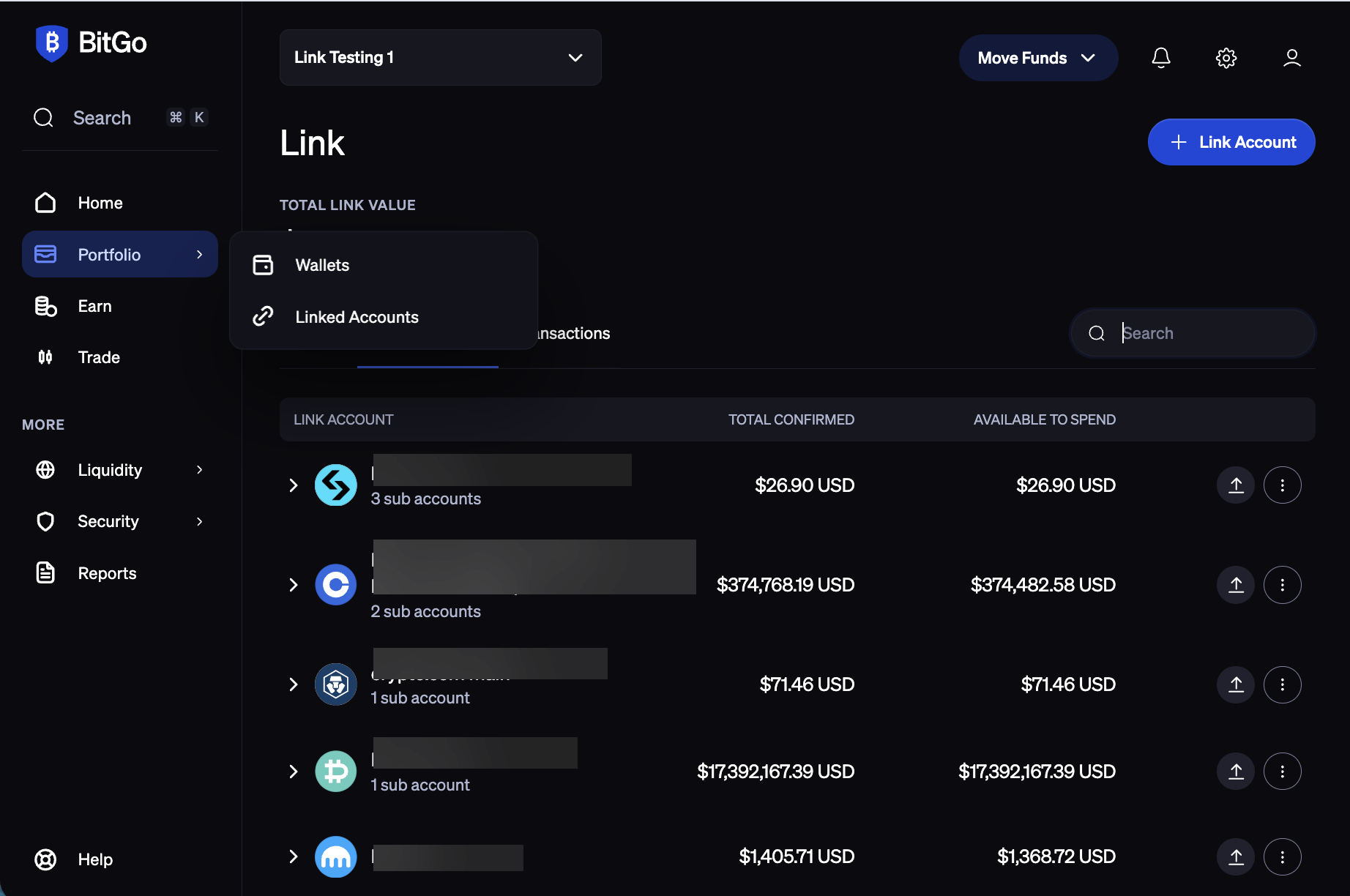
Navigate to the Portfolio tab in BitGo and click + Link Account in the top-right corner.
Select Coinbase Exchange.
Enter your API Key, API Secret, and Passphrase, then click Connect Account.
Was this article helpful?
That’s Great!
Thank you for your feedback
Sorry! We couldn't be helpful
Thank you for your feedback
Feedback sent
We appreciate your effort and will try to fix the article