Link Your External Crypto.com Exchange Account
This guide covers how to create an API keys on the Crypto.com exchange to Link your account to BitGo.
Before you start
Make sure you're on your master account.
You'll create the API key at Crypto.com Account API Management, then enter the credentials into BitGo.
1. Create the API key on Crypto.com
On the API Management page, click Create a New API Key and configure it as follows:
Complete 2FA if prompted.
Permissions: Trading permission is not required. Read access is sufficient to connect your account and view balances and positions. To enable transfers and withdrawals through BitGo, you will also need the Withdrawal permission.
IP Whitelist (optional) — allowlist these addresses:
- 54.201.131.213
- 52.39.41.139
- 52.43.255.93
- 35.164.184.184
- 54.214.57.139
- 18.220.107.76
- 18.222.87.170
- 3.137.109.219
- 18.156.154.77
- 52.59.4.20
After creating the key, copy the Secret Key — it's only shown once. Click Edit on the newly created key to retrieve your API Key.
NOTE: When withdrawing to Crypto.com, you must first generate deposit addresses manually on their platform. This venue unfortunately does not support an integration for address generation.
2. Link your account on BitGo
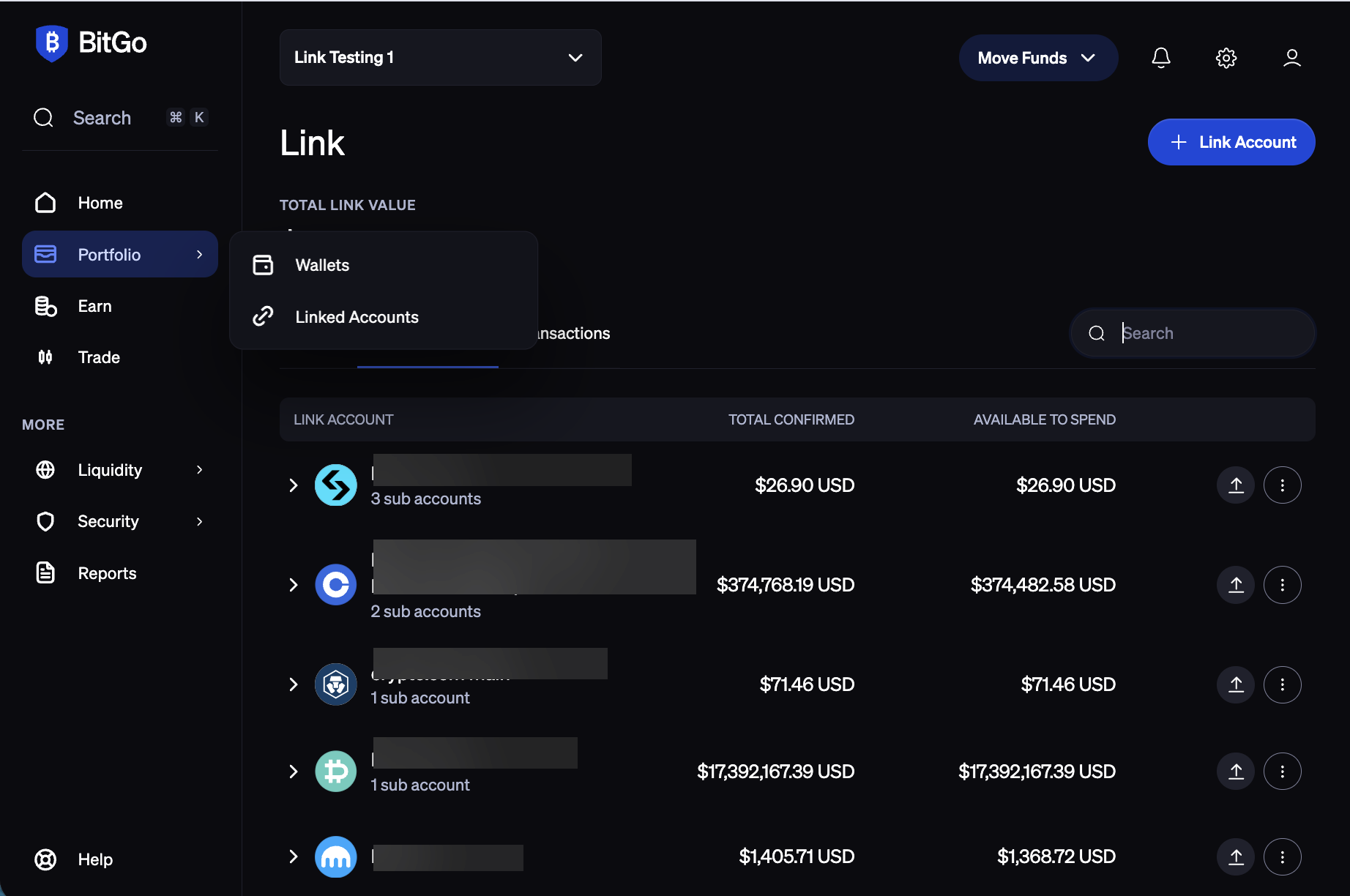
Navigate to the Portfolio tab in BitGo and click + Link Account in the top-right corner.
Select Crypto.com.
Enter your API Key and Secret Key, then click Connect Account.
Was this article helpful?
That’s Great!
Thank you for your feedback
Sorry! We couldn't be helpful
Thank you for your feedback
Feedback sent
We appreciate your effort and will try to fix the article