Link Your External Gate Exchange Account
This guide covers how to create an API keys on the Gate exchange to Link your account to BitGo.
Before you start
Make sure you're on your main Gate account.
You'll create the API key in Gate's API Key Management page, then enter the credentials into BitGo.
1. Create the API key on Gate
In API Key Management, click Create API Key and select Trading Account. Configure the key as follows:
API Key Type: API v4 Key
Account Type: Trading Account
IP Permissions — select Bind IP (recommended) and allowlist these addresses:
- 54.201.131.213/32
- 52.39.41.139/32
- 52.43.255.93/32
- 35.164.184.184/32
- 54.214.57.139/32
- 18.220.107.76/32
- 18.222.87.170/32
- 3.137.109.219/32
- 18.156.154.77/32
- 52.59.4.20/32
Permissions — set the appropriate level for each permission type:
Spot Trade
Perp Futures
Delivery Futures
Wallet
Sub Account
Account
Margin Trading (Unified Account)
Read-only access is sufficient to connect your account and view balances and positions. To enable transfers and withdrawals through BitGo, you will also need write permission on the relevant permission types.
Click Submit, accept the agreement, and complete the security verification. Gate will then display your Key and Secret.
2. Connect on BitGo
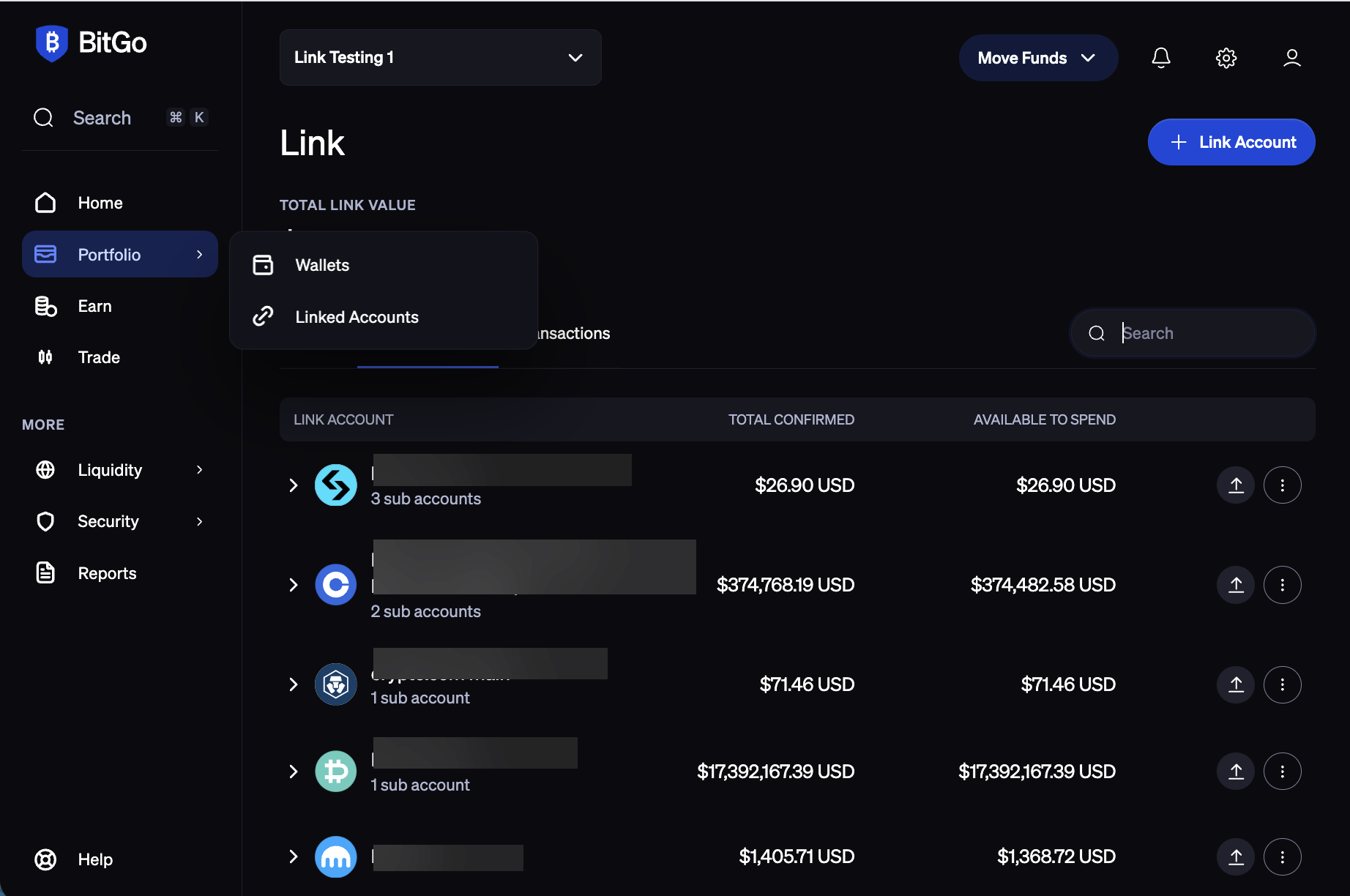
Navigate to the Portfolio tab in BitGo and click + Link Account in the top-right corner.
Select Gate.
Enter your Key under API Key and your Secret under API Secret, then click Connect Account.
Was this article helpful?
That’s Great!
Thank you for your feedback
Sorry! We couldn't be helpful
Thank you for your feedback
Feedback sent
We appreciate your effort and will try to fix the article