Link Your External Bitstamp Exchange Account
This guide covers how to create an API keys on the Bitstamp exchange to Link your account to BitGo.
Before you start
Make sure you're on your Bitstamp Main Account.
You'll create the API key in Bitstamp's API Access page, then enter the credentials into BitGo.
1. Create the API key on Bitstamp
On the top right corner of your screen click the building icon then Settings.
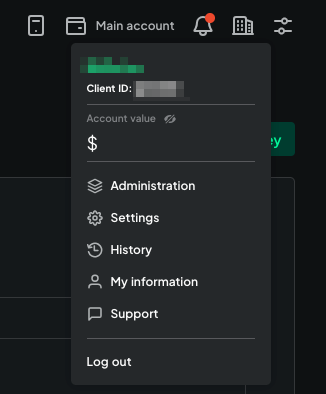
If needed, enter your Bistamp account password and 2FA code.
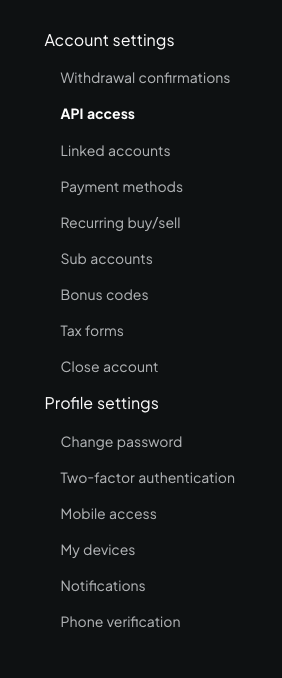
On the menu on the left side of your screen click on API access.
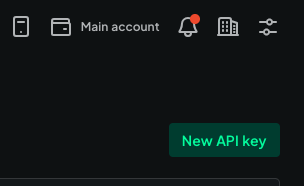
On the top right corner of your screen click on New API key
Click on Advanced settings
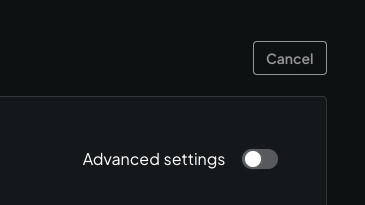
For security purposes bind the new API key to Bitgo’s IPs — allowlist these addresses:
- 52.43.255.93
- 35.164.184.184
- 54.214.57.139
- 18.220.107.76
- 18.222.87.170
- 3.137.109.219
- 18.156.154.77
- 52.59.4.20
You will need to enter each IP individually and then click Add, this also a good time to make sure the API key’s Associated account is your Main Account
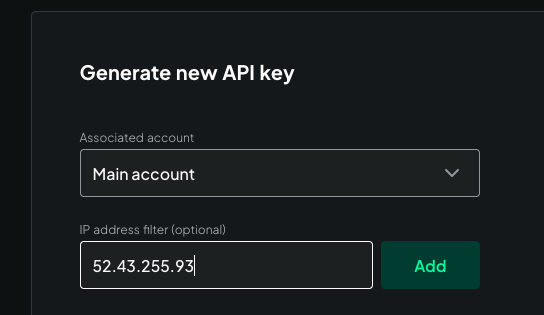
Enable the following permissions on your new API key:
Create crypto withdrawals
List withdrawal requests
Transfer balances to your main account
Transfer balances from your main account
View account balances
View your transactions
View Ripple deposit address
List unconfirmed bitcoin deposits
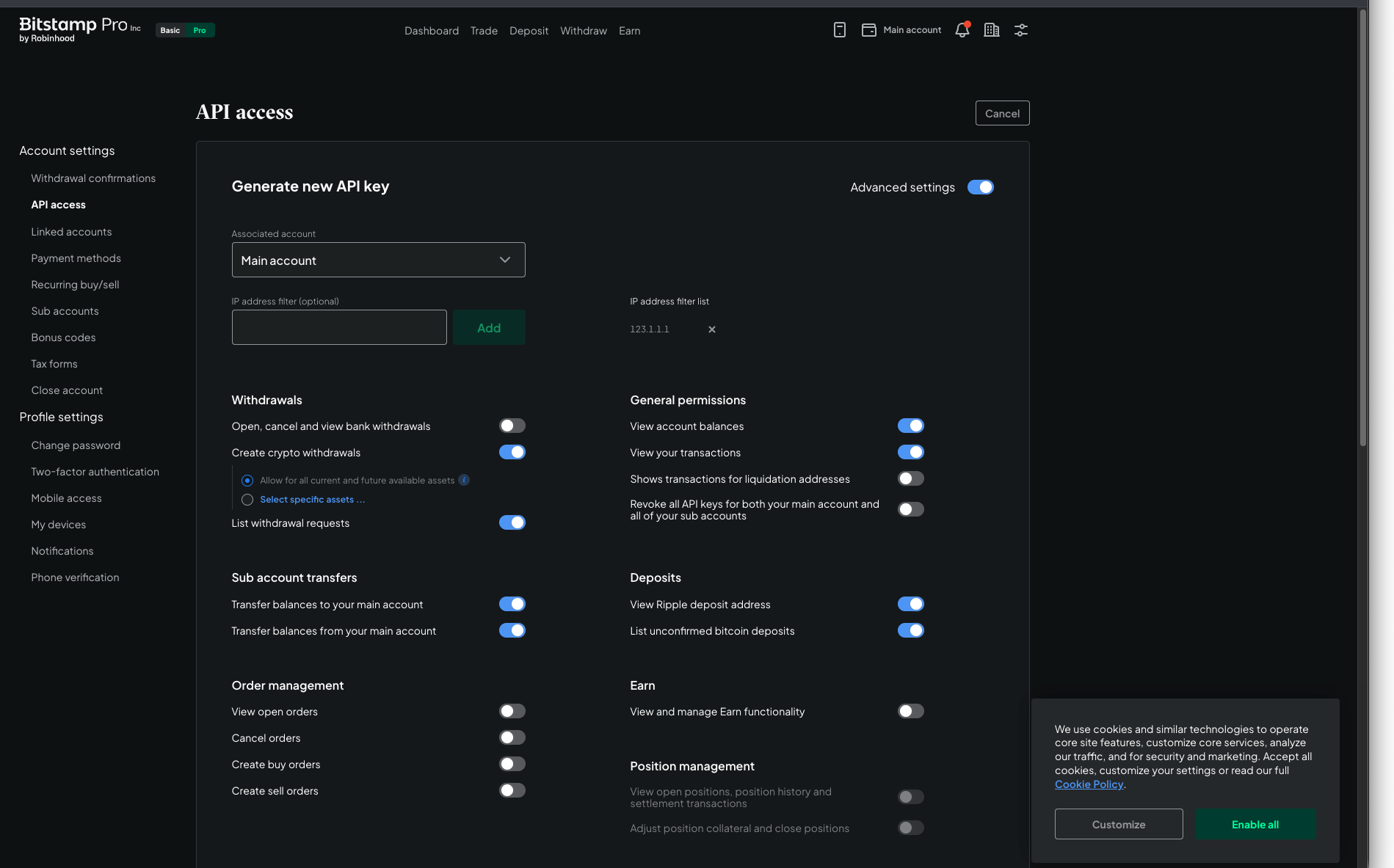
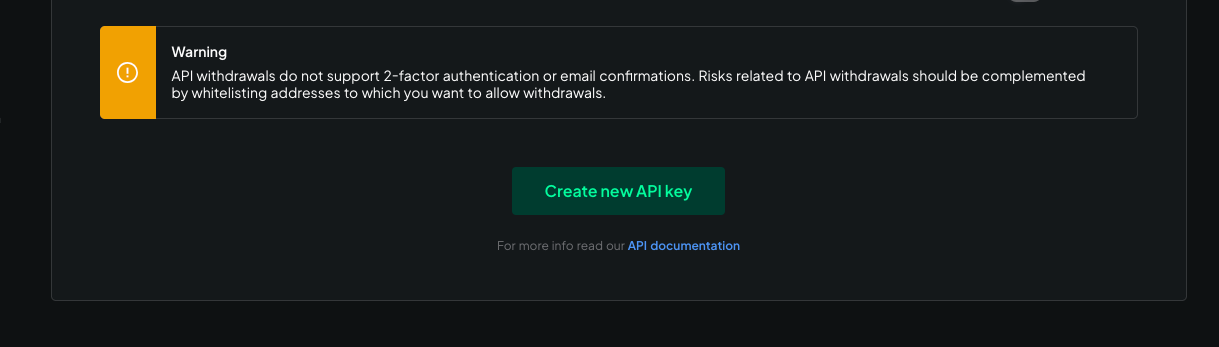
Scroll to the bottom of the page, if needed, and click on Create new API key
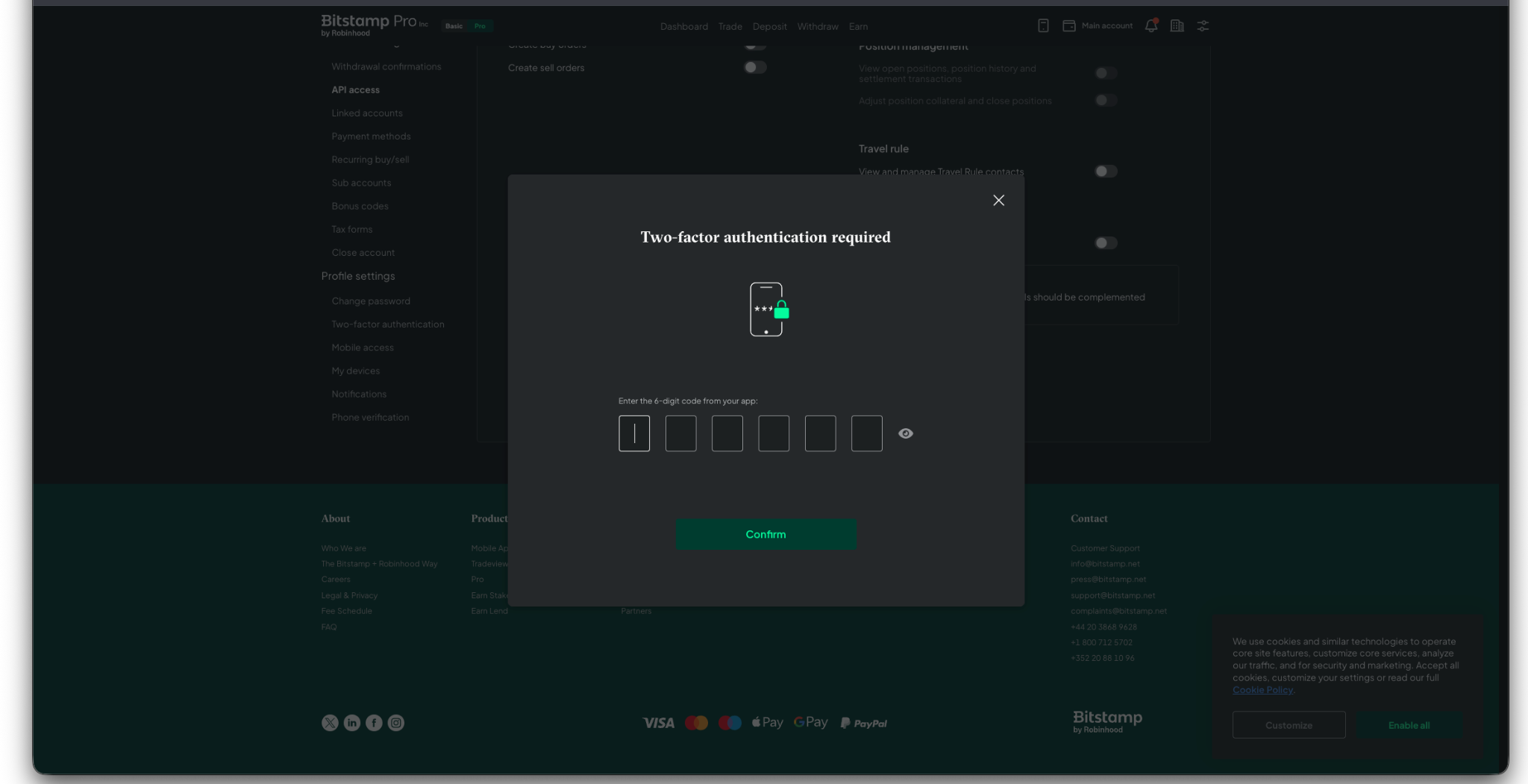
Enter your 2FA code
Congratulations, you have successfully generated an API key for your Main Account!
Do not close this page or navigate away, Bitstamp will never again show you your secret key.
Make a note of your newly created API Key and Secret.
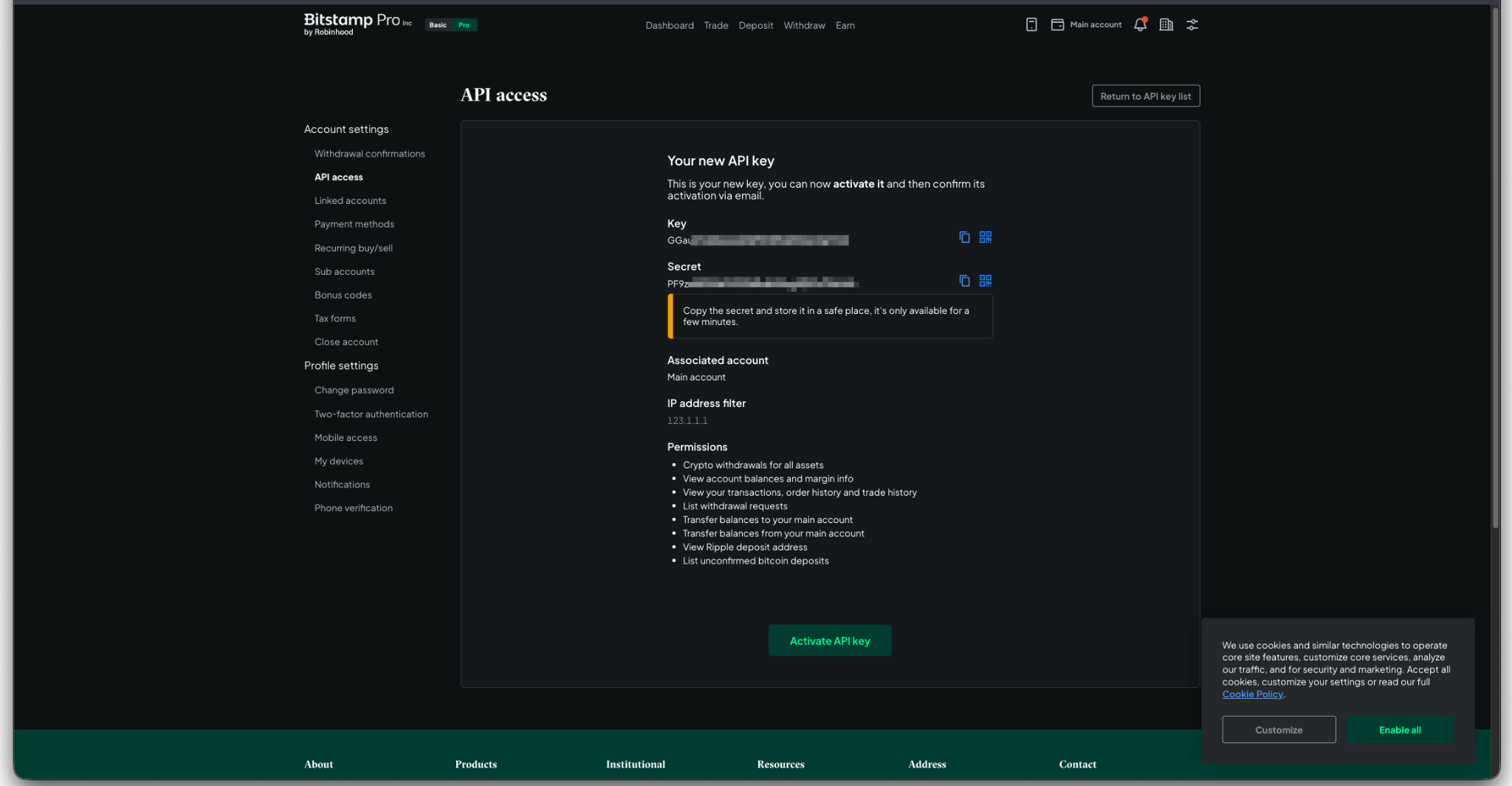
2. Link your account on BitGo and Activate your API key on Bitstamp
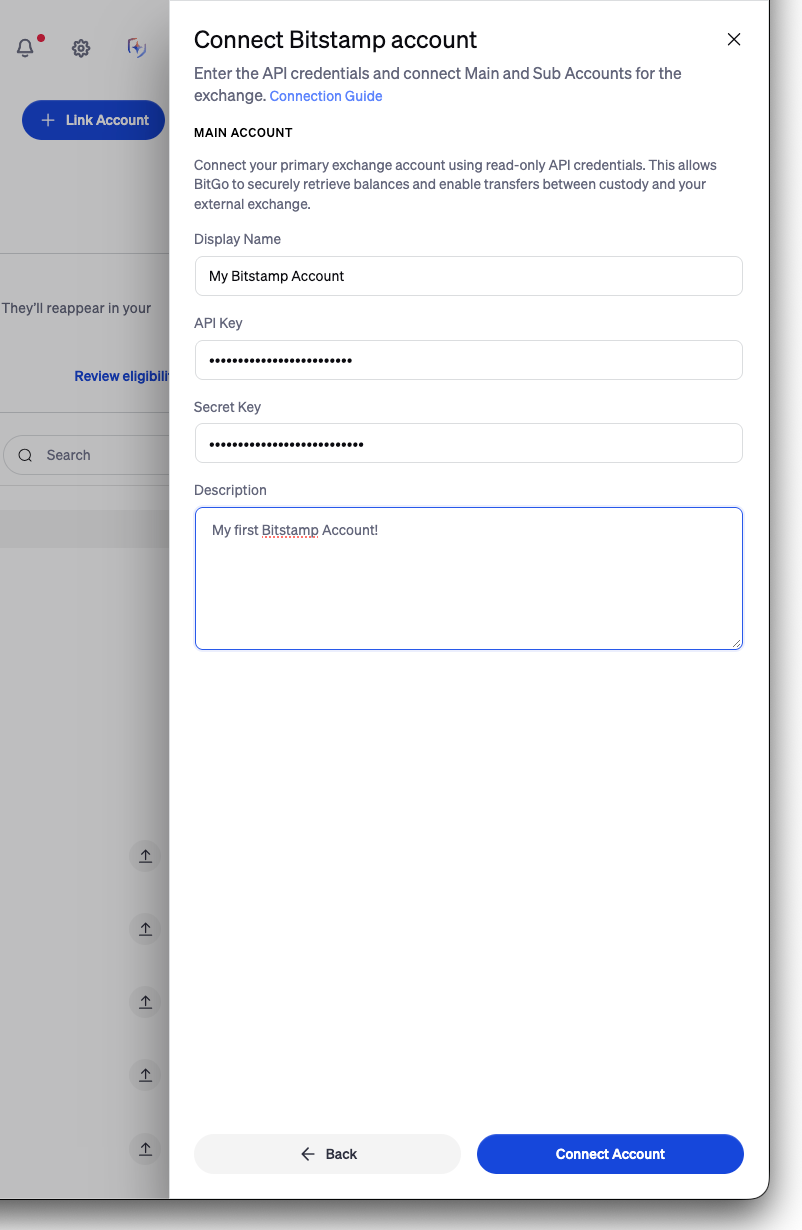
Navigate to the Portfolio tab in BitGo and click + Link Account in the top-right corner.
Select Bitstamp.
Enter your API Key and Secret Key, account name and description. Do not click Connect Account if you have not yet activated your Bitstamp API key.
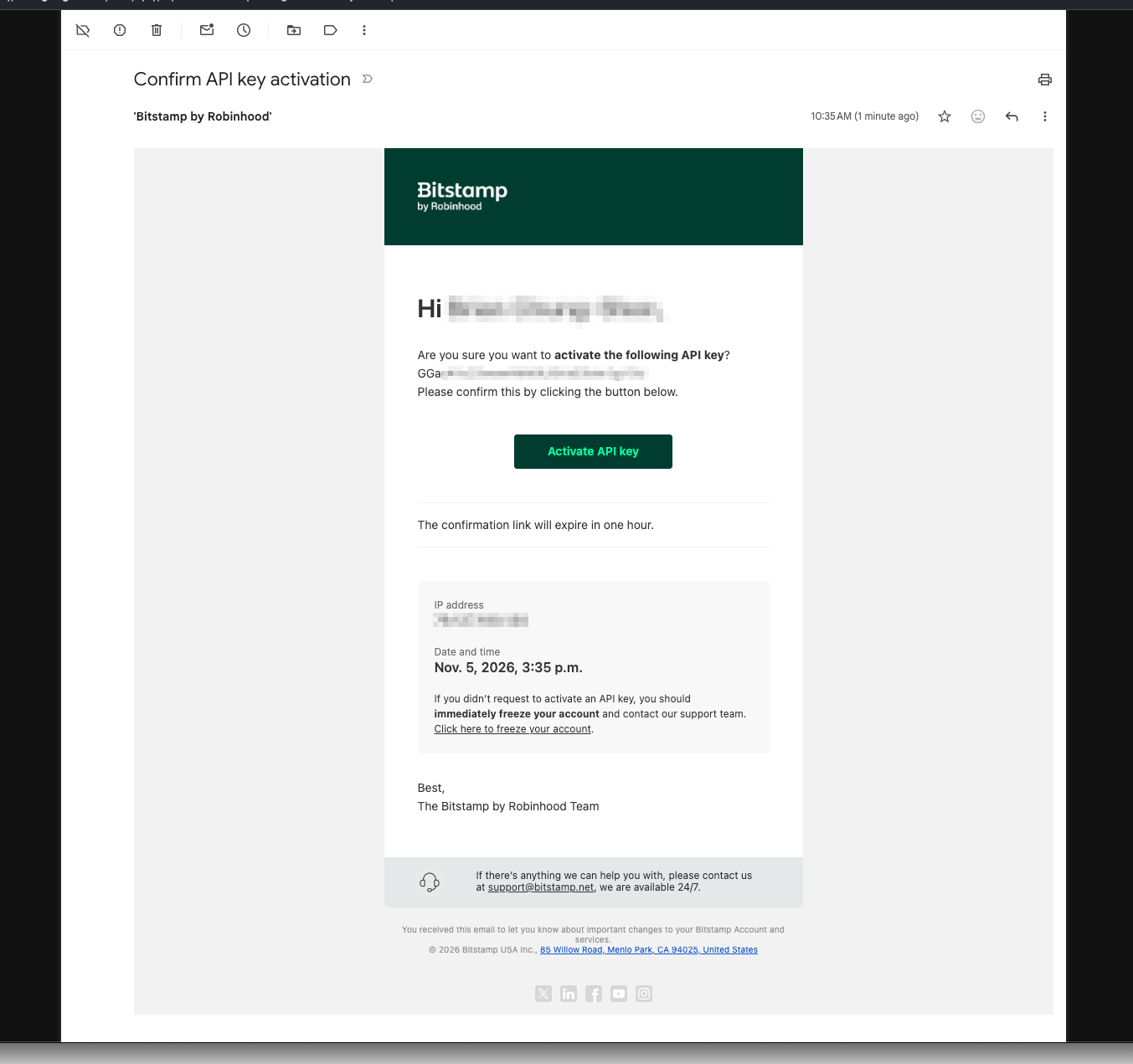
Activate your Bitstamp API key by clicking the Activate API key button on Bitstamp, and clicking the activation link sent to the email associated with your Bitstamp account.

Click the Activate API key link on the “Confirm API key activation” email you received
Click Connect Account on Bitgo to finish the process.
3. Create API keys for your sub accounts, if needed
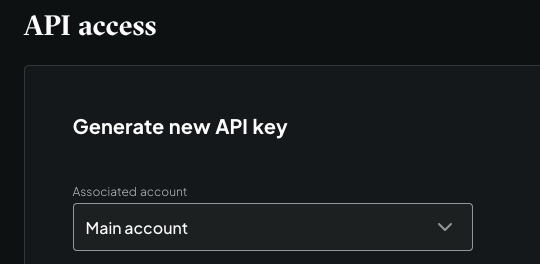
To create an API key for you sub account follow the same process, except you will choose your sub account on the Associated account drop down
Enable the following permissions on your new sub account API key:
View account balances
View your transactions
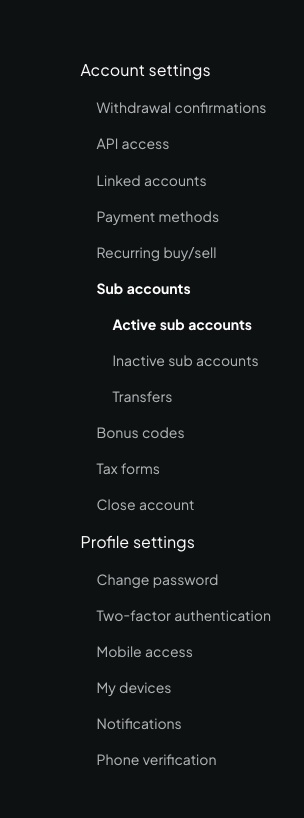
Make a note of your sub account’s Unique ID by going to the Sub accounts page
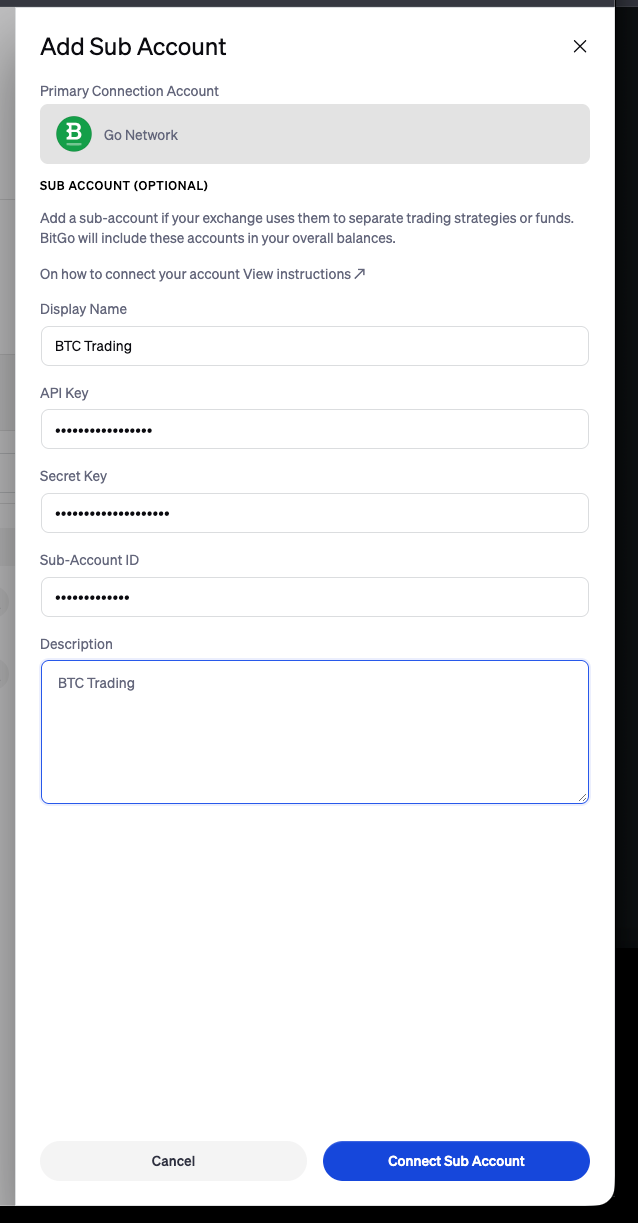
And finish the process by using your API Key, Secret, and sub account Unique ID on Bitgo
Was this article helpful?
That’s Great!
Thank you for your feedback
Sorry! We couldn't be helpful
Thank you for your feedback
Feedback sent
We appreciate your effort and will try to fix the article